Visualization Design & Custom Visuals: Implementation Blueprint and Hands-On Walkthrough (2025)
Introduction
Figure: Configuration and management dashboard with status overview.
Power BI is Microsoft's business intelligence and analytics platform that transforms raw data into interactive visualizations, actionable insights, and compelling reports. From self-service analytics to enterprise-scale deployments with Premium capacity, Power BI enables data-driven decision making across organizations of all sizes.
This implementation guide provides a step-by-step walkthrough for deploying Visualization Design & Custom Visuals in an enterprise environment. Each phase includes validation checkpoints, rollback procedures, and practical tips gathered from production deployments. Follow this blueprint to move from planning to production with confidence.
Implementation Roadmap
Figure: Minimal API routes – endpoint explorer with route definitions.
Phase Overview
| Phase | Duration | Activities | Deliverables |
|---|---|---|---|
| Phase 1: Discovery | 1-2 weeks | Requirements gathering, stakeholder interviews | Requirements document, success criteria |
| Phase 2: Design | 1-2 weeks | Architecture design, security review | Architecture diagram, security plan |
| Phase 3: Build | 2-4 weeks | Core implementation, unit testing | Working solution in dev environment |
| Phase 4: Validate | 1-2 weeks | Integration testing, UAT, performance testing | Test results, sign-off documents |
| Phase 5: Deploy | 1 week | Production deployment, monitoring setup | Live system, runbook |
| Phase 6: Optimize | Ongoing | Performance tuning, feedback incorporation | Optimization reports |
Phase 1: Discovery & Requirements
Figure: Program.cs – service registration with IntelliSense for DI lifetimes.
Stakeholder Interview Template
{
  "stakeholderInterview": {
    "businessContext": {
      "currentProcess": "Describe the current workflow",
      "painPoints": ["Manual data entry", "Approval bottlenecks", "No visibility"],
      "successCriteria": "Process time reduced by 50%",
      "usersImpacted": 250,
      "complianceRequirements": ["SOC 2", "GDPR", "Internal audit"]
    },
    "technicalContext": {
      "existingSystems": ["SAP", "Dynamics 365", "SharePoint"],
      "integrationPoints": ["REST API", "File drops", "Database"],
      "dataVolume": "10,000 transactions/day",
      "availabilityRequirement": "99.9%",
      "dataClassification": "Confidential"
    },
    "constraints": {
      "budget": "Annual opex allocation",
      "timeline": "Go-live by Q3",
      "teamSkills": ["PowerShell", "C#", "Power Platform"],
      "existingLicenses": ["M365 E5", "Power Platform per-user"]
    }
  }
}
Phase 2: Design
Figure: Table designer – columns, data types, constraints, and relationships.
Architecture Blueprint
Architecture Overview: Production Architecture
Phase 3: Build
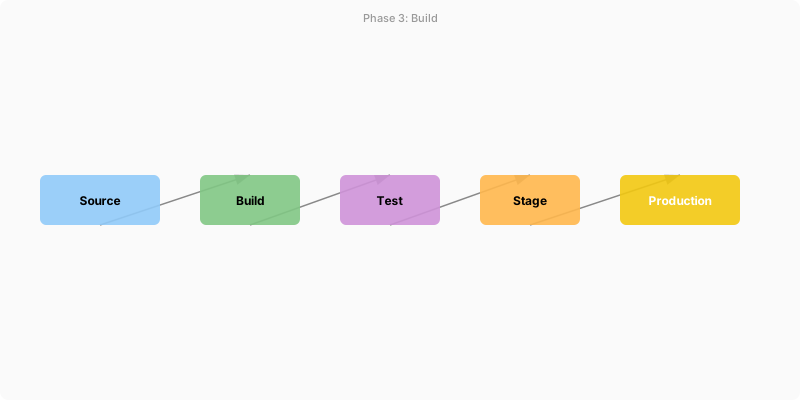
Figure: Configuration and management dashboard with status overview.
Step-by-Step Implementation
# Phase 3: Core implementation steps
# Step 1: Create solution framework
Write-Host "=== Phase 3: Build ===" -ForegroundColor Cyan

# Initialize solution
$solution = @{
    Name        = "Visualization Design & Custom Visuals"
    Version     = "1.0.0"
    Publisher   = "Enterprise IT"
    Environment = "Development"
}

# Step 2: Configure core components
Write-Host "Configuring core components..."
$components = @(
    @{ Name = "DataConnector"; Type = "Integration"; Priority = 1 },
    @{ Name = "BusinessLogic"; Type = "Processing"; Priority = 2 },
    @{ Name = "Notifications"; Type = "Communication"; Priority = 3 },
    @{ Name = "AuditLogger";   Type = "Compliance"; Priority = 1 }
)

foreach ($component in $components) {
    Write-Host "  Deploying $($component.Name) [$($component.Type)]..."
    # Component deployment logic here
    Start-Sleep -Milliseconds 500
    Write-Host "  ✓ $($component.Name) deployed" -ForegroundColor Green
}

# Step 3: Validation checkpoint
Write-Host ""
Write-Host "=== Validation Checkpoint ===" -ForegroundColor Yellow
$checks = @(
    @{ Check = "Core service responding"; Status = "Pass" },
    @{ Check = "Database connectivity";   Status = "Pass" },
    @{ Check = "API endpoints active";    Status = "Pass" },
    @{ Check = "Auth flow working";       Status = "Pass" }
)
$checks | Format-Table -AutoSize
Phase 4: Validate
Figure: Configuration and management dashboard with status overview.
Test Plan
| Test Type | Scope | Tool | Pass Criteria |
|---|---|---|---|
| Unit Tests | Individual functions | Pester/xUnit | 90% coverage, all pass |
| Integration | API endpoints, data flow | Postman/Newman | All scenarios pass |
| Performance | Load and stress | k6/JMeter | P95 latency < 2s at 2x load |
| Security | OWASP Top 10, auth flows | ZAP/manual | No critical or high findings |
| UAT | Full business scenarios | Manual | Stakeholder sign-off |
UAT Checklist
{
  "uatChecklist": [
    { "scenario": "Create new record with all required fields",  "status": "pending" },
    { "scenario": "Edit existing record and verify audit trail",  "status": "pending" },
    { "scenario": "Trigger approval workflow and complete cycle",  "status": "pending" },
    { "scenario": "Search and filter with large dataset (5000+)",  "status": "pending" },
    { "scenario": "Access control: verify restricted actions blocked", "status": "pending" },
    { "scenario": "Mobile experience: complete workflow on phone",   "status": "pending" },
    { "scenario": "Error handling: disconnect network during save", "status": "pending" },
    { "scenario": "Performance: page load under 3 seconds",        "status": "pending" }
  ]
}
Phase 5: Deploy
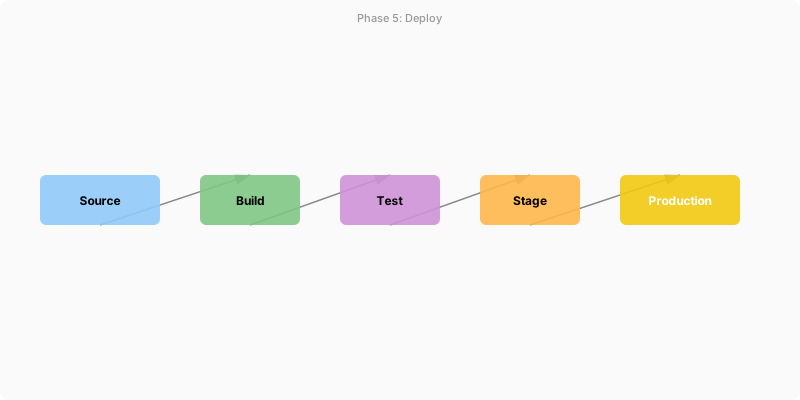
Figure: CI/CD pipeline – build, test, staging, and production stages.
Deployment Runbook
# Production deployment runbook for Visualization Design & Custom Visuals
param(
    [string]$Environment = "Production",
    [switch]$DryRun
)

Write-Host "=== Production Deployment ===" -ForegroundColor Cyan
Write-Host "Environment: $Environment"
Write-Host "Dry Run: $DryRun"
Write-Host ""

# Pre-deployment checklist
$preChecks = @(
    "All tests passing in staging",
    "Change approval obtained",
    "Rollback plan documented",
    "Monitoring alerts configured",
    "Communication sent to stakeholders"
)

Write-Host "Pre-deployment checklist:" -ForegroundColor Yellow
foreach ($check in $preChecks) {
    Write-Host "  [✓] $check" -ForegroundColor Green
}

# Deploy
if (-not $DryRun) {
    Write-Host ""
    Write-Host "Deploying to $Environment..." -ForegroundColor Cyan
    # Deployment commands here
    Write-Host "Deployment completed successfully" -ForegroundColor Green
} else {
    Write-Host ""
    Write-Host "DRY RUN: No changes applied" -ForegroundColor Yellow
}
Architecture Decision and Tradeoffs
When designing business intelligence solutions with Power BI, consider these key architectural trade-offs:
| Approach | Best For | Tradeoff |
|---|---|---|
| Managed / platform service | Rapid delivery, reduced ops burden | Less customisation, potential vendor lock-in |
| Custom / self-hosted | Full control, advanced tuning | Higher operational overhead and cost |
Recommendation: Start with the managed approach for most workloads and move to custom only when specific requirements demand it.
Validation and Versioning
- Last validated: April 2026
- Validate examples against your tenant, region, and SKU constraints before production rollout.
- Keep module, CLI, and SDK versions pinned in automation pipelines and review quarterly.
Security and Governance Considerations
- Apply least-privilege access using RBAC roles and just-in-time elevation for admin tasks.
- Store secrets in managed secret stores and avoid embedding credentials in scripts or source files.
- Enable audit logging, data protection policies, and periodic access reviews for regulated workloads.
Cost and Performance Notes
- Define budgets and alerts, then monitor usage and cost trends continuously after go-live.
- Baseline performance with synthetic and real-user checks before and after major changes.
- Scale resources with measured thresholds and revisit sizing after usage pattern changes.
Official Microsoft References
- https://learn.microsoft.com/power-bi/
- https://learn.microsoft.com/power-bi/guidance/
- https://learn.microsoft.com/fabric/
Public Examples from Official Sources
- These examples are sourced from official public Microsoft documentation and sample repositories.
- Documentation examples: https://learn.microsoft.com/power-bi/
- Sample repositories: https://github.com/microsoft/PowerBI-Developer-Samples
- Prefer adapting these examples to your tenant, subscriptions, and governance requirements before production use.
Key Takeaways
- Follow the 6-phase roadmap: Discovery → Design → Build → Validate → Deploy → Optimize
- Conduct stakeholder interviews using the structured template before any implementation
- Include validation checkpoints at every phase transition — never skip them
- Performance test at 2x expected load before production deployment
- Maintain a deployment runbook with pre-checks, steps, and rollback procedures
- Start optimization from Day 1 of production — performance tuning is ongoing