Dashboards & Publishing: Developer Implementation Guide (2025)
Introduction
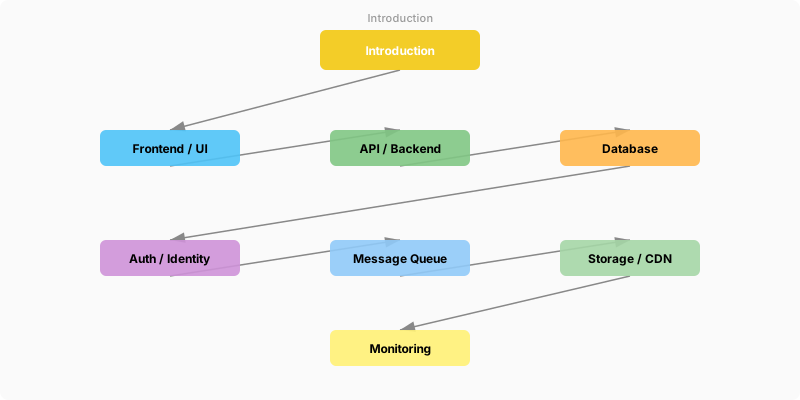
Figure: Configuration and management dashboard with status overview.
Power BI is Microsoft's business intelligence and analytics platform that transforms raw data into interactive visualizations, actionable insights, and compelling reports. From self-service analytics to enterprise-scale deployments with Premium capacity, Power BI enables data-driven decision making across organizations of all sizes.
This developer-focused guide provides hands-on implementation patterns for Dashboards & Publishing, targeting professional developers who need practical code samples, API integration patterns, and development workflow optimizations. We go beyond configuration to show you how to build, test, debug, and deploy Dashboards & Publishing solutions programmatically.
What You'll Learn
- How to interact with Dashboards & Publishing APIs and SDKs programmatically
- Design patterns for robust, maintainable integrations
- Testing strategies for Dashboards & Publishing dependent code
- CI/CD pipeline integration for automated deployments
- Performance profiling and optimization techniques
Development Environment Setup
Figure: Configuration and management dashboard with status overview.
Required Tools
| Tool | Version | Purpose |
|---|---|---|
| VS Code | Latest | Primary IDE with extensions |
| Git | 2.40+ | Version control |
| Node.js | 20 LTS | Runtime and tooling |
| .NET SDK | 8.0+ | Backend development |
| PowerShell | 7.4+ | Automation scripting |
| REST Client | Any | API testing and exploration |
Environment Configuration
# Developer environment setup for Dashboards & Publishing
# Install required PowerShell modules
Install-Module -Name Microsoft.Graph -Force -AllowClobber
Install-Module -Name Az -Force -AllowClobber

# Configure development variables
$env:TENANT_ID = "your-tenant-id"
$env:CLIENT_ID = "your-app-client-id"
$env:ENVIRONMENT = "development"

# Initialize project structure
New-Item -ItemType Directory -Path @(
    "src", "tests", "config", "docs", "scripts"
) -Force

# Create development configuration
@{
    tenant      = $env:TENANT_ID
    clientId    = $env:CLIENT_ID
    environment = "development"
    logging     = @{ level = "Debug"; console = $true }
    features    = @{ mockData = $true; verboseErrors = $true }
} | ConvertTo-Json -Depth 3 | Set-Content "config/dev.json"

Write-Host "Development environment configured" -ForegroundColor Green
Expected output:
Package installed successfully.

API Integration Patterns
Figure: Embedded report – web application with JavaScript SDK configuration.
Pattern 1: Authenticated API Client
// C# - Authenticated API client for Dashboards & Publishing
using Microsoft.Graph;
using Azure.Identity;

public class ServiceClient
{
    private readonly GraphServiceClient _graph;

    public ServiceClient(string tenantId, string clientId, string clientSecret)
    {
        var credential = new ClientSecretCredential(
            tenantId, clientId, clientSecret);

        _graph = new GraphServiceClient(credential,
            new[] { "https://graph.microsoft.com/.default" });
    }

    public async Task<IEnumerable<object>> GetDataAsync(
        string filter = null, int top = 100)
    {
        var request = _graph.Users.GetAsync(config =>
        {
            config.QueryParameters.Top = top;
            config.QueryParameters.Select = new[]
            {
                "id", "displayName", "mail", "department"
            };
            if (!string.IsNullOrEmpty(filter))
                config.QueryParameters.Filter = filter;
        });

        return await request;
    }
}
Pattern 2: Batch Operations
// Batch operations for efficiency
public async Task<BatchResult> ProcessBatchAsync(
    IEnumerable<BatchItem> items)
{
    const int batchSize = 20; // Graph API limit
    var results = new List<BatchResult>();

    foreach (var batch in items.Chunk(batchSize))
    {
        var batchContent = new BatchRequestContentCollection(_graph);

        foreach (var item in batch)
        {
            var request = _graph.Users[item.Id]
                .PatchAsync(new User { Department = item.Department });
            await batchContent.AddBatchRequestStepAsync(request);
        }

        var response = await _graph.Batch.PostAsync(batchContent);
        results.Add(new BatchResult
        {
            Processed = batch.Length,
            Succeeded = response.GetResponsesStatusCodes()
                .Count(s => s.Value < 300)
        });
    }

    return BatchResult.Aggregate(results);
}
Testing Strategies
Figure: Test Studio – recorded test cases, assertions, and execution results.
Unit Testing
// xUnit test with mocked dependencies
[Fact]
public async Task GetData_ReturnsFilteredResults()
{
    // Arrange
    var mockClient = new Mock<IServiceClient>();
    mockClient
        .Setup(c => c.GetDataAsync(It.IsAny<string>(), It.IsAny<int>()))
        .ReturnsAsync(TestData.SampleItems);

    var service = new BusinessService(mockClient.Object);

    // Act
    var result = await service.ProcessAsync("active");

    // Assert
    Assert.NotEmpty(result);
    Assert.All(result, item => Assert.Equal("Active", item.Status));
}
Integration Testing
# Integration test script for Dashboards & Publishing
Describe "Dashboards & Publishing Integration Tests" {
    BeforeAll {
        Connect-MgGraph -Scopes "Directory.Read.All"
        $testContext = Initialize-TestEnvironment
    }

    It "Should authenticate successfully" {
        $context = Get-MgContext
        $context | Should -Not -BeNullOrEmpty
        $context.AuthType | Should -Be "AppOnly"
    }

    It "Should retrieve data within SLA" {
        $stopwatch = [System.Diagnostics.Stopwatch]::StartNew()
        $result = Get-MgUser -Top 10
        $stopwatch.Stop()

        $result.Count | Should -BeGreaterThan 0
        $stopwatch.ElapsedMilliseconds | Should -BeLessThan 5000
    }

    AfterAll {
        Disconnect-MgGraph
        Remove-TestEnvironment $testContext
    }
}
Expected output:
Welcome to Microsoft Graph!

CI/CD Pipeline Integration
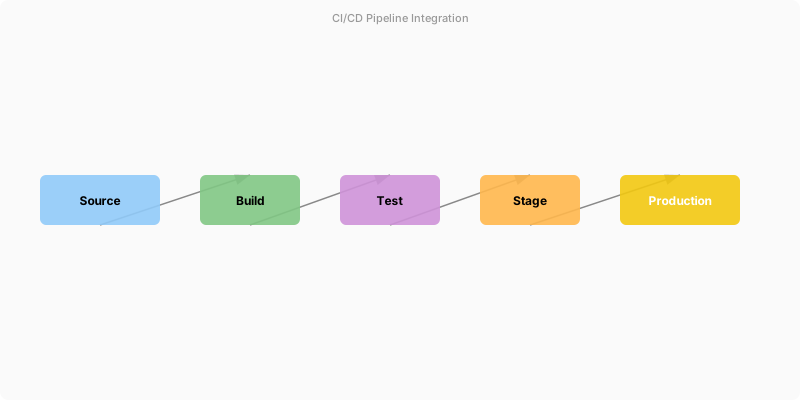
Figure: Azure DevOps pipeline – stages, deployment gates, and artifact publishing.
# Azure DevOps pipeline for Dashboards & Publishing
trigger:
  branches:
    include: [main, develop]
  paths:
    include: [src/**, tests/**]

pool:
  vmImage: 'ubuntu-latest'

stages:
  - stage: Build
    jobs:
      - job: BuildAndTest
        steps:
          - task: UseDotNet@2
            inputs:
              version: '8.0.x'

          - script: dotnet restore
            displayName: 'Restore packages'

          - script: dotnet build --configuration Release
            displayName: 'Build solution'

          - script: dotnet test --configuration Release --collect:"XPlat Code Coverage"
            displayName: 'Run tests'

  - stage: Deploy
    condition: and(succeeded(), eq(variables['Build.SourceBranch'], 'refs/heads/main'))
    jobs:
      - deployment: Production
        environment: production
        strategy:
          runOnce:
            deploy:
              steps:
                - script: dotnet publish -c Release -o publish
                  displayName: 'Publish artifacts'

                - task: AzureWebApp@1
                  inputs:
                    appType: 'webApp'
                    appName: '$(APP_NAME)'
                    package: 'publish'
Architecture Decision and Tradeoffs
When designing business intelligence solutions with Power BI, consider these key architectural trade-offs:
| Approach | Best For | Tradeoff |
|---|---|---|
| Managed / platform service | Rapid delivery, reduced ops burden | Less customisation, potential vendor lock-in |
| Custom / self-hosted | Full control, advanced tuning | Higher operational overhead and cost |
Recommendation: Start with the managed approach for most workloads and move to custom only when specific requirements demand it.
Validation and Versioning
- Last validated: April 2026
- Validate examples against your tenant, region, and SKU constraints before production rollout.
- Keep module, CLI, and SDK versions pinned in automation pipelines and review quarterly.
Security and Governance Considerations
- Apply least-privilege access using RBAC roles and just-in-time elevation for admin tasks.
- Store secrets in managed secret stores and avoid embedding credentials in scripts or source files.
- Enable audit logging, data protection policies, and periodic access reviews for regulated workloads.
Cost and Performance Notes
- Define budgets and alerts, then monitor usage and cost trends continuously after go-live.
- Baseline performance with synthetic and real-user checks before and after major changes.
- Scale resources with measured thresholds and revisit sizing after usage pattern changes.
Official Microsoft References
- https://learn.microsoft.com/power-bi/
- https://learn.microsoft.com/power-bi/guidance/
- https://learn.microsoft.com/fabric/
Public Examples from Official Sources
- These examples are sourced from official public Microsoft documentation and sample repositories.
- Documentation examples: https://learn.microsoft.com/power-bi/
- Sample repositories: https://github.com/microsoft/PowerBI-Developer-Samples
- Prefer adapting these examples to your tenant, subscriptions, and governance requirements before production use.
Key Takeaways
- Set up a proper development environment with version-controlled configuration
- Use authenticated API clients with service principals for production workloads
- Implement batch operations to stay within API throttling limits
- Write unit tests with mocked dependencies and integration tests against test environments
- Automate deployments with CI/CD pipelines that include testing gates
- Profile performance regularly and optimize hot paths