],
"Subtotal": 6000,
"Tax": 480,
"InvoiceTotal": 6480
}
**Confidence Scores (Per Field):**

```json
{
  "VendorName": {"value": "Contoso Corp", "confidence": 0.98},
  "InvoiceNumber": {"value": "INV-2025-001234", "confidence": 0.95},
  "InvoiceTotal": {"value": 6480, "confidence": 0.99}
}
Custom Form Processing (Structured Layout)
Use Case: Internal expense report form (always same template)
Training Process:
- Upload 5 sample PDFs (minimum, 15 recommended)
- AI Builder auto-detects fields (or manually draw boxes)
- Label each field (ExpenseDate, EmployeeName, TotalAmount, Department, etc.)
- Label tables (expense line items: Date, Merchant, Category, Amount)
- Train model (~5-10 minutes)
- Test with holdout samples
- Publish model (generates Model ID)
Field Types:
- Text: Employee name, department, description
- Number: Amount, quantity
- Date: Expense date, submission date
- Checkbox: Manager approval, receipt attached
- Table: Multiple line items with columns
Flow Integration:
{
  "Extract_Data_from_Custom_Form": {
```text
"type": "ApiConnection",
"inputs": {
  "host": {
    "connectionName": "shared_formrecognizer"
  },
  "method": "post",
  "path": "/formrecognizer/documentModels/{modelId}:analyze",
  "queries": {
    "api-version": "2022-08-31"
  },
  "body": {
    "base64Source": "@{body('Get_file_content')}"
  },
  "pathParameters": {
    "modelId": "@parameters('ExpenseFormModelId')"
  }
}```
  }
}
Custom Document Processing (Variable Layouts)
Use Case: Purchase orders from 100+ vendors (different templates)
Training Requirements:
- Minimum samples: 50 (5-10 per vendor for top vendors)
- Layout diversity: Include all major vendors
- Quality samples: Clear scans, no handwriting, readable text
- Representative data: Include edge cases (multi-page, tables, special formats)
Labeling Strategy:
- Label same fields across all documents (PO Number, Vendor, Date, Total, etc.)
- AI Builder learns field location varies by vendor
- More samples = better generalization to new vendors
Accuracy Expectations:
- 5 vendors, 50 samples → 85-90% accuracy
- 20 vendors, 200 samples → 90-95% accuracy
- New vendor (not in training) → 75-85% accuracy (model generalizes)
Production Training Workflow
Step-by-Step Model Training Process
Phase 1: Sample Collection (Week 1)
- Identify document scope (which vendors, departments, time periods)
- Collect minimum 50 samples (5-10 per major variant)
- Ensure quality: clear scans, readable text, no handwriting, complete documents
- Organize samples: name files descriptively (Vendor_InvoiceNum_Date.pdf)
- Upload to SharePoint folder for version control
Phase 2: Model Creation (Day 1)
- Navigate to AI Builder portal (make.powerapps.com → AI Builder → Create)
- Select model type (Form Processing vs Document Processing)
- Name model descriptively (e.g., "VendorInvoice_Production_v2")
- Upload sample documents (drag-and-drop or select files)
- Wait for automatic field detection (~2-5 minutes for 50 samples)
Phase 3: Field Labeling (Days 2-3)
- Review auto-detected fields (AI Builder suggests common fields)
- Add custom fields: Click "Add" → Draw box around field → Name field
- Label consistently across all samples (InvoiceNumber not Invoice#, InvNum, etc.)
- Label tables: Draw box around table → Define columns → Label header row
- Validate all samples: Check each document has labels (green checkmark)
Field Naming Best Practices:
- Use PascalCase without spaces: InvoiceNumber, VendorName, TotalAmount
- Avoid special characters: Use TaxID not Tax#, DueDate not Due-Date
- Be specific: LineItemDescription not Description (ambiguous)
- Match target system fields: If ERP uses PONumber, use PONumber (not PurchaseOrder)
Phase 4: Training (Day 3)
- Click "Train" button (processing time: 10-60 minutes depending on sample count)
- Review training progress bar (can close window, email notification on completion)
- Once complete, review accuracy metrics:
- Overall accuracy score (target: >90%)
- Per-field accuracy (identify problematic fields)
- Confusion matrix (which fields commonly misidentified)
Phase 5: Testing (Day 4)
- Upload test documents (NOT used in training - holdout set of 10-20 samples)
- Review extraction results:
- Correctly extracted fields (green)
- Incorrectly extracted or low confidence (yellow/red)
- Missing fields (red)
- Calculate accuracy: (Correct fields / Total fields) × 100
- If accuracy <85%, add more training samples and retrain
Phase 6: Publish (Day 5)
- Click "Publish" once satisfied with test accuracy
- Model generates unique Model ID (GUID):
12345678-1234-1234-1234-123456789abc - Copy Model ID to secure location (needed for Power Automate flows)
- Document model: Version number, training date, accuracy, sample count
Complete End-to-End Extraction Flow
Production-Grade Invoice Processing Flow
{
  "Trigger_When_File_Added": {
```text
"type": "ApiConnectionTrigger",
"inputs": {
  "host": {
    "connectionName": "shared_sharepointonline"
  },
  "method": "get",
  "path": "/datasets/@{encodeURIComponent('https://contoso.sharepoint.com/sites/AP')}/tables/@{encodeURIComponent('Invoices')}/onnewitems"
}```
  },
  "Get_File_Content": {
```text
"type": "ApiConnection",
"inputs": {
  "host": {
    "connectionName": "shared_sharepointonline"
  },
  "method": "get",
  "path": "/datasets/@{encodeURIComponent('https://contoso.sharepoint.com/sites/AP')}/files/@{encodeURIComponent(triggerBody()?['{Identifier}'])}/content"
}```
  },
  "Process_Invoice_with_AI_Builder": {
```text
"type": "ApiConnection",
"inputs": {
  "host": {
    "connectionName": "shared_formrecognizer"
  },
  "method": "post",
  "path": "/formrecognizer/documentModels/prebuilt-invoice:analyze",
  "body": {
    "base64Source": "@{base64(body('Get_File_Content'))}"
  }
},
"runAfter": {
  "Get_File_Content": ["Succeeded"]
}```
  },
  "Parse_AI_Builder_Response": {
```text
"type": "ParseJson",
"inputs": {
  "content": "@body('Process_Invoice_with_AI_Builder')",
  "schema": {
    "type": "object",
    "properties": {
      "VendorName": {
        "type": "object",
        "properties": {
          "value": {"type": "string"},
          "confidence": {"type": "number"}
        }
      },
      "InvoiceNumber": {
        "type": "object",
        "properties": {
          "value": {"type": "string"},
          "confidence": {"type": "number"}
        }
      },
      "InvoiceTotal": {
        "type": "object",
        "properties": {
          "value": {"type": "number"},
          "confidence": {"type": "number"}
        }
      }
    }
  }
}```
  },
  "Initialize_MinConfidence": {
```text
"type": "InitializeVariable",
"inputs": {
  "variables": [
    {
      "name": "MinConfidence",
      "type": "float",
      "value": 0.85
    }
  ]
}```
  },
  "Validate_Critical_Fields": {
```text
"type": "Compose",
"inputs": {
  "VendorName": {
    "value": "@{body('Parse_AI_Builder_Response')?['VendorName']?['value']}",
    "confidence": "@{body('Parse_AI_Builder_Response')?['VendorName']?['confidence']}",
    "isValid": "@greaterOrEquals(body('Parse_AI_Builder_Response')?['VendorName']?['confidence'], variables('MinConfidence'))"
  },
  "InvoiceNumber": {
    "value": "@{body('Parse_AI_Builder_Response')?['InvoiceNumber']?['value']}",
    "confidence": "@{body('Parse_AI_Builder_Response')?['InvoiceNumber']?['confidence']}",
    "isValid": "@greaterOrEquals(body('Parse_AI_Builder_Response')?['InvoiceNumber']?['confidence'], variables('MinConfidence'))"
  },
  "InvoiceTotal": {
    "value": "@{body('Parse_AI_Builder_Response')?['InvoiceTotal']?['value']}",
    "confidence": "@{body('Parse_AI_Builder_Response')?['InvoiceTotal']?['confidence']}",
    "isValid": "@greaterOrEquals(body('Parse_AI_Builder_Response')?['InvoiceTotal']?['confidence'], variables('MinConfidence'))"
  }
}```
  },
  "Condition_All_Fields_Valid": {
```text
"type": "If",
"expression": {
  "and": [
    {
      "equals": [
        "@outputs('Validate_Critical_Fields')?['VendorName']?['isValid']",
        true
      ]
    },
    {
      "equals": [
        "@outputs('Validate_Critical_Fields')?['InvoiceNumber']?['isValid']",
        true
      ]
    },
    {
      "equals": [
        "@outputs('Validate_Critical_Fields')?['InvoiceTotal']?['isValid']",
        true
      ]
    }
  ]
},
"actions": {
  "Create_Invoice_in_ERP": {
    "type": "ApiConnection",
    "inputs": {
      "host": {
        "connectionName": "shared_sql"
      },
      "method": "post",
      "path": "/datasets/@{encodeURIComponent('ERP_Database')}/tables/@{encodeURIComponent('Invoices')}/items",
      "body": {
        "VendorName": "@{outputs('Validate_Critical_Fields')?['VendorName']?['value']}",
        "InvoiceNumber": "@{outputs('Validate_Critical_Fields')?['InvoiceNumber']?['value']}",
        "InvoiceTotal": "@{outputs('Validate_Critical_Fields')?['InvoiceTotal']?['value']}",
        "ProcessedDate": "@{utcNow()}",
        "Status": "Pending Approval",
        "Confidence": "@{outputs('Validate_Critical_Fields')?['InvoiceTotal']?['confidence']}"
      }
    }
  },
  "Move_to_Processed_Folder": {
    "type": "ApiConnection",
    "inputs": {
      "host": {
        "connectionName": "shared_sharepointonline"
      },
      "method": "post",
      "path": "/datasets/@{encodeURIComponent('https://contoso.sharepoint.com/sites/AP')}/files/@{encodeURIComponent(triggerBody()?['{Identifier}'])}/move",
      "queries": {
        "destination": "/sites/AP/Processed/@{outputs('Validate_Critical_Fields')?['InvoiceNumber']?['value']}.pdf"
      }
    }
  }
},
"else": {
  "actions": {
    "Create_Review_Task": {
      "type": "ApiConnection",
      "inputs": {
        "host": {
          "connectionName": "shared_planner"


        },
        "method": "post",
        "path": "/v1.0/plans/@{parameters('PlanId')}/tasks",
        "body": {
          "title": "Review Invoice - Low Confidence Extraction",
          "assignments": {
            "@{parameters('ReviewerUserId')}": {
              "orderHint": " !"
            }
          },
          "description": "Invoice: @{outputs('Validate_Critical_Fields')?['InvoiceNumber']?['value']}\nVendor: @{outputs('Validate_Critical_Fields')?['VendorName']?['value']} (Confidence: @{outputs('Validate_Critical_Fields')?['VendorName']?['confidence']})\nTotal: @{outputs('Validate_Critical_Fields')?['InvoiceTotal']?['value']} (Confidence: @{outputs('Validate_Critical_Fields')?['InvoiceTotal']?['confidence']})\n\nPlease review and manually enter if needed.",
          "dueDateTime": "@{addDays(utcNow(), 1)}"
        }
      }
    },
    "Move_to_Exceptions_Folder": {
      "type": "ApiConnection",
      "inputs": {
        "host": {
          "connectionName": "shared_sharepointonline"
        },
        "method": "post",
        "path": "/datasets/@{encodeURIComponent('https://contoso.sharepoint.com/sites/AP')}/files/@{encodeURIComponent(triggerBody()?['{Identifier}'])}/move",
        "queries": {
          "destination": "/sites/AP/Exceptions/@{triggerBody()?['{Name}']}"
        }
      }
    }
  }
}```
  }
}


> **Architecture Overview:** ## Confidence Threshold Tuning Strategy

{
  "Validate_Field_Confidence": {
```text
"type": "Compose",
"inputs": {
  "InvoiceTotal": {
    "value": "@body('AI_Builder')?['InvoiceTotal']?['value']",
    "isValid": "@greaterOrEquals(body('AI_Builder')?['InvoiceTotal']?['confidence'], 0.90)"
  },
  "VendorAddress": {
    "value": "@body('AI_Builder')?['VendorAddress']?['value']",
    "isValid": "@greaterOrEquals(body('AI_Builder')?['VendorAddress']?['confidence'], 0.75)"
  }
}```
  }
}
Data Normalization and Validation
Problem: Extracted Data Needs Cleanup

AI Builder extracts raw text, which requires normalization before loading into business systems.
Common Normalization Patterns:
1. Date Format Standardization
{
  "Normalize_Date": {
```text
"type": "Compose",
"inputs": "@formatDateTime(body('AI_Builder')?['InvoiceDate']?['value'], 'yyyy-MM-dd')"```
  }
}
2. Currency Conversion
{
  "Convert_Currency": {
```text
"type": "Compose",
"inputs": "@mul(body('AI_Builder')?['Amount']?['value'], variables('ExchangeRate'))"```
  }
}
3. Text Cleanup (Trim Whitespace, Remove Special Characters)
{
  "Clean_Text": {
```text
"type": "Compose",
"inputs": "@trim(replace(body('AI_Builder')?['VendorName']?['value'], '\n', ' '))"```
  }
}
4. Number Validation
{
  "Validate_Positive_Amount": {
```text
"type": "Condition",
"expression": {
  "and": [
    {
      "greater": [
        "@body('AI_Builder')?['InvoiceTotal']?['value']",
        0
      ]
    },
    {
      "less": [
        "@body('AI_Builder')?['InvoiceTotal']?['value']",
        1000000
      ]
    }
  ]
}```
  }
}
Performance Optimization for Scale
Scenario: Process 50,000 Invoices Monthly
Challenge: 50,000 invoices × $0.01/page × 2 pages avg = $1,000/month AI Builder costs + processing time
Optimization Strategies:
1. Batch Processing Off-Peak Hours
- Schedule flows to run 2 AM - 6 AM (lower API latency)
- Process 500 invoices per batch (avoid throttling)
- Use recurrence trigger with concurrency control
2. Avoid Reprocessing
- Tag processed files in SharePoint (ProcessedDate column)
- Filter trigger:
ProcessedDate eq null - Prevents duplicate AI Builder calls ($$ savings)
3. Cache Reference Data
- Vendor master list: Load once per flow run, not per invoice
- Tax codes: Initialize variable at start
- Exchange rates: Daily refresh, not per transaction
4. Parallel Processing with Degree of Parallelism
{
  "Apply_to_Each_Invoice": {
```text
"type": "Foreach",
"foreach": "@body('Get_Unprocessed_Invoices')?['value']",
"runtimeConfiguration": {
  "concurrency": {
    "repetitions": 20
  }
},
"actions": {
  "Process_Invoice": {
    "type": "ApiConnection",
    "inputs": {
      "host": {
        "connectionName": "shared_formrecognizer"
      },
      "method": "post",
      "path": "/formrecognizer/documentModels/prebuilt-invoice:analyze"
    }
  }
}```
  }
}
Performance Metrics:
- Sequential processing: 50,000 invoices × 10 seconds = 138 hours
- Parallel (DoP=20): 50,000 / 20 = 2,500 batches × 10 seconds = 6.9 hours (95% faster)
Cost Management and Optimization
AI Builder Pricing Model
Consumption-Based:
- $500 for 1 million AI Builder "service credits"
- Invoice Processing: 5 credits per page (1M pages for $500)
- Form Processing: 20 credits per page (250K pages for $500)
Cost Calculation Example:
- 10,000 invoices/month × 2 pages/invoice = 20,000 pages
- 20,000 pages × $0.01/page = $200/month
- Annual cost: $2,400
ROI Calculation:
- Manual data entry: 10,000 invoices × 5 minutes × $25/hour = $20,833/month
- AI Builder automation: $200/month + 1,500 exceptions × 2 minutes × $25/hour = $1,450/month
- Savings: $19,383/month = $232,596/year
Cost Optimization Strategies
1. Model Consolidation
- Don't create separate model per vendor (1,000 models = management nightmare)
- Use Document Processing for variable layouts (1 model for all vendors)
- Share models across environments (Dev/Test use same Prod model)
2. Prebuilt vs Custom Trade-Off
- Prebuilt Invoice: $0.01/page, 90% accuracy
- Custom Form Processing: $0.04/page, 95% accuracy
- Decision: If prebuilt meets accuracy target, use it (4× cheaper)
3. Monitor Credit Consumption
# PowerShell to check AI Builder credit usage
Connect-PowerAppsAdmin

Get-AdminPowerAppEnvironment | ForEach-Object {
```powershell
$env = $_
$usage = Get-AdminPowerAppAIBuilderUsage -EnvironmentName $env.EnvironmentName

[PSCustomObject]@{
    Environment = $env.DisplayName
    CreditsUsed = $usage.TotalCreditsConsumed
    CreditsRemaining = $usage.CreditsAllocated - $usage.TotalCreditsConsumed
    PercentUsed = ($usage.TotalCreditsConsumed / $usage.CreditsAllocated * 100)
}```
} | Format-Table
Security and Compliance
Data Privacy Considerations
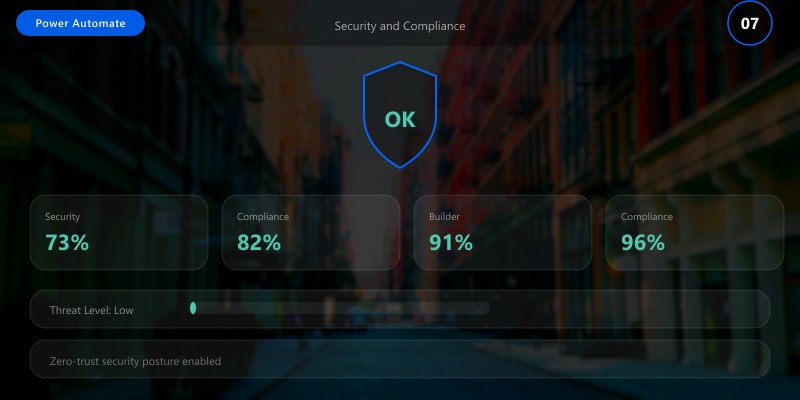
Problem: AI Builder processes sensitive data (SSN, credit cards, health records)
Mitigation:
1. Data Residency
- AI Builder processes in same region as environment (US data stays in US)
- GDPR compliance: EU data processed in EU
2. Encryption
- Data in transit: TLS 1.2+
- Data at rest: AES-256 (Azure Cognitive Services backend)
3. Access Control
- Restrict AI Builder model access to specific security groups
- Separate Dev/Test/Prod environments
- Use service principal connections (not user credentials)
4. Data Retention
- AI Builder does NOT store documents long-term (processed and discarded)
- Extracted data stored in Dataverse/SharePoint (customer-controlled retention)
- Audit logs: 90 days in Power Platform, export to Azure Log Analytics for 7 years
Compliance Frameworks
SOX (Financial Data):
- Segregation of duties: Separate model training from production usage
- Change management: Document model version changes
- Audit trail: Log all extractions with confidence scores
HIPAA (Healthcare):
- Sign BAA with Microsoft
- Use dedicated environment for PHI processing
- Log all PHI access (who viewed what patient document when)
Best Practices Summary
DO:
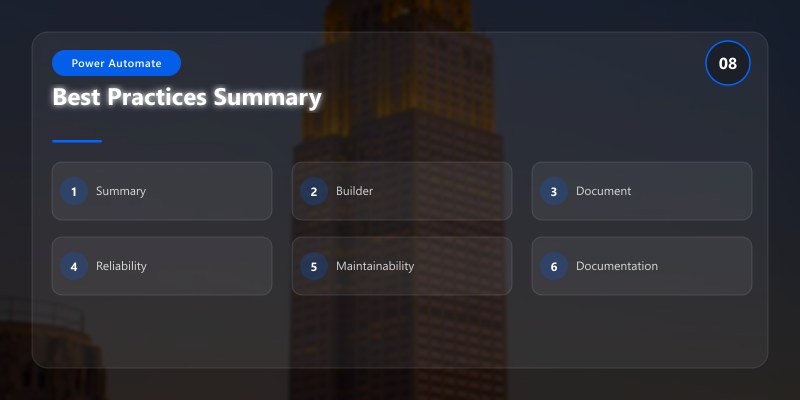
- Collect Diverse Training Samples - 50+ documents covering all major variants
- Use Consistent Field Names - PascalCase, match target system fields
- Test with Holdout Data - Don't test on training samples (overfitting)
- Tune Confidence Thresholds - Balance automation vs accuracy based on ROI
- Implement Exception Workflows - Planner tasks, Teams notifications for low-confidence extractions
- Monitor Model Accuracy Over Time - Monthly drift analysis, retrain when accuracy drops >5%
- Normalize Extracted Data - Trim whitespace, standardize dates, validate ranges
- Use Parallel Processing - DoP=20 for large-scale document processing
- Log All Extractions - Store confidence scores in Dataverse for audit trail
- Version Control Models - Name models with version numbers (InvoiceModel_v2)
DON'T:
- Don't Train on Insufficient Samples - <5 samples = poor accuracy
- Don't Ignore Confidence Scores - Low confidence = high error risk
- Don't Hardcode Thresholds - Use variables for easy tuning
- Don't Assume 100% Accuracy - Always design exception workflows
- Don't Process Same Document Twice - Tag processed files to avoid duplicate costs
- Don't Skip Testing - Deploy to production without test validation = failures
- Don't Mix Document Types in Single Model - Invoices + receipts + POs = confusion
- Don't Store PII Longer Than Needed - Delete source documents after extraction
- Don't Ignore Costs - Monitor credit consumption monthly
- Don't Forget Retraining - Models degrade over time (new vendors, format changes)
Troubleshooting Guide
Issue 1: Low Extraction Accuracy (<80%)
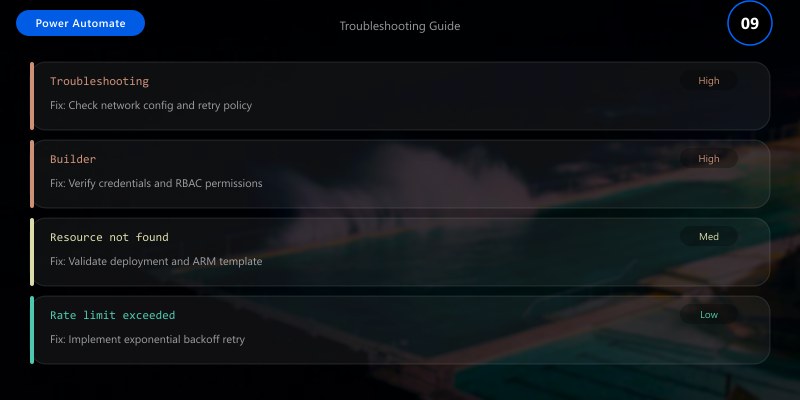
Symptoms:
- Many fields extracted incorrectly
- Confidence scores consistently low (<0.70)
- Exception rate >40%
Diagnosis:
- Check training sample diversity (do samples represent production documents?)
- Review field labeling consistency (same field labeled differently across samples?)
- Analyze which fields have lowest accuracy (specific problem areas?)
Resolution:
- Add 20-30 more training samples focusing on problematic document types
- Relabel fields consistently (VendorName everywhere, not Vendor, Supplier, etc.)
- Remove low-quality samples (blurry scans, handwritten, damaged)
- Retrain model and test again
Example: Invoice model trained on 5 vendors, production has 50 vendors → Add samples from top 20 vendors by volume
Issue 2: Field Not Extracted (Missing Data)
Symptoms:
- Specific field always null or empty
- Field visible in document but not in AI Builder results
- No confidence score returned for field
Common Causes:
- Field not labeled in training (oversight)
- Field in different location across documents (inconsistent placement)
- Field uses different terminology (labeled "Total" but document says "Amount Due")
Resolution:
- Review all training samples - is field labeled in every sample?
- If field location varies, switch from Form Processing to Document Processing model
- Add samples with field variations (Total, Amount Due, Grand Total, etc.)
- Relabel and retrain
Issue 3: High Exception Volume (>30%)
Symptoms:
- 30-50% of documents routed to manual review
- Confidence threshold prevents automation
- High manual labor cost
Diagnosis:
- Review confidence score distribution (are most scores 0.70-0.85?)
- Check if threshold too strict (0.95 = very conservative)
- Analyze specific document types causing exceptions (certain vendors?)
Resolution:
- Lower confidence threshold from 0.90 to 0.85 (test accuracy impact)
- Implement per-field thresholds (critical fields 0.90, non-critical 0.75)
- Add more training samples for problematic vendors
- Accept higher automation rate with lower accuracy if cost-benefit favorable
Example: Lowering threshold 0.90 → 0.85 increased automation 60% → 80% with accuracy drop 98% → 95% (acceptable trade-off)
Issue 4: Slow Processing Time (>30 seconds per document)
Symptoms:
- Flow execution time >30 seconds per invoice
- Timeout errors for large batches
- High API latency
Common Causes:
- Large file sizes (10MB+ scanned PDFs)
- Sequential processing (no parallelism)
- Network latency (calling AI Builder from distant region)
Resolution:
- Compress PDFs before processing (reduce from 10MB to 500KB using Adobe)
- Enable parallel processing with DoP=10-20
- Process during off-peak hours (2 AM - 6 AM lower latency)
- Use child flows for large batches (parent flow triggers 10 child flows)
Architecture Decision and Tradeoffs
When designing process automation solutions with Power Automate, consider these key architectural trade-offs:
| Approach | Best For | Tradeoff |
|---|---|---|
| Managed / platform service | Rapid delivery, reduced ops burden | Less customisation, potential vendor lock-in |
| Custom / self-hosted | Full control, advanced tuning | Higher operational overhead and cost |
Recommendation: Start with the managed approach for most workloads and move to custom only when specific requirements demand it.
Validation and Versioning
- Last validated: April 2026
- Validate examples against your tenant, region, and SKU constraints before production rollout.
- Keep module, CLI, and SDK versions pinned in automation pipelines and review quarterly.
Security and Governance Considerations
- Apply least-privilege access using RBAC roles and just-in-time elevation for admin tasks.
- Store secrets in managed secret stores and avoid embedding credentials in scripts or source files.
- Enable audit logging, data protection policies, and periodic access reviews for regulated workloads.
Cost and Performance Notes
- Define budgets and alerts, then monitor usage and cost trends continuously after go-live.
- Baseline performance with synthetic and real-user checks before and after major changes.
- Scale resources with measured thresholds and revisit sizing after usage pattern changes.
Official Microsoft References
- https://learn.microsoft.com/power-automate/
- https://learn.microsoft.com/power-platform/admin/
- https://learn.microsoft.com/power-platform/guidance/
Public Examples from Official Sources
- These examples are sourced from official public Microsoft documentation and sample repositories.
- Documentation examples: https://learn.microsoft.com/power-automate/
- Sample repositories: https://github.com/microsoft/PowerPlatformConnectors
- Prefer adapting these examples to your tenant, subscriptions, and governance requirements before production use.
Key Takeaways
- AI Builder Transforms Document Processing: Reduces manual data entry from 5-10 minutes per document to 5 seconds, with 90-95% accuracy and 80-95% automation rate, saving $15-25 per document.
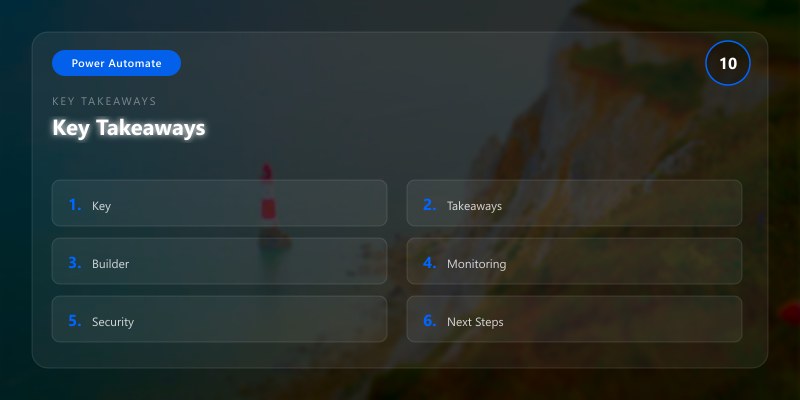
Model Selection is Critical: Prebuilt models work for standard documents (invoices, receipts) with no training required. Custom Form Processing for consistent layouts (5-15 samples). Document Processing for variable layouts (50+ samples).
Confidence Thresholds Balance Automation vs Accuracy: Too low (<0.70) = high automation but many errors. Too high (>0.95) = low automation, high manual review cost. Optimal: 0.85-0.90 depending on risk tolerance.
Exception Workflows are Mandatory: 10-20% of documents will have low-confidence extractions. Design Planner/Teams task routing for manual review to prevent data quality issues.
Monitor and Retrain Regularly: Model accuracy degrades over time as vendors change invoice formats, new vendors added, document quality varies. Monthly accuracy monitoring and quarterly retraining keeps models production-ready.
Next Steps
- Start with Prebuilt Model Trial: Use Prebuilt Invoice Processing on 10 sample invoices to understand AI Builder capabilities
- Collect Training Samples: Gather 50+ representative documents for your use case
- Build Proof of Concept: Create custom model, train, test, measure accuracy and automation rate
- Calculate ROI: Compare AI Builder costs ($200-500/month) vs manual labor savings ($10K-20K/month)
- Design Exception Workflow: Build Planner task creation for low-confidence extractions before production deployment
Resources
- AI Builder Form Processing Guide - Official Microsoft documentation
- AI Builder Invoice Processing - Prebuilt invoice model reference
- Power Automate AI Builder Integration - Flow integration patterns
- AI Builder Pricing - Credit consumption and cost calculator
- AI Builder Community - User forums and troubleshooting