@equals(triggerBody()?['ProcessedByFlow'], false)
**Alternative: Status-Based Guard**

```text
@and(equals(triggerBody()?['Status'], 'Pending'), not(equals(triggerBody()?['Editor']?['Email'], 'flowrunner@contoso.com')))
This prevents flow from triggering when it's the editor.
High-Volume Trigger Optimization
For libraries with >1,000 uploads/day, use folder-specific triggers or filter by content type:
Folder-Specific Trigger:
{
  "When_a_file_is_created": {
```text
"type": "ApiConnection",
"inputs": {
  "host": {"connectionName": "shared_sharepointonline"},
  "method": "get",
  "path": "/datasets/@{encodeURIComponent('https://contoso.sharepoint.com/sites/HR')}/tables/@{encodeURIComponent('Shared Documents')}/onnewitems",
  "queries": {
    "folderPath": "/Shared Documents/Invoices"
  }
}```
  }
}
Intelligent Metadata Enrichment Patterns
Pattern 1: Path-Based Department Detection
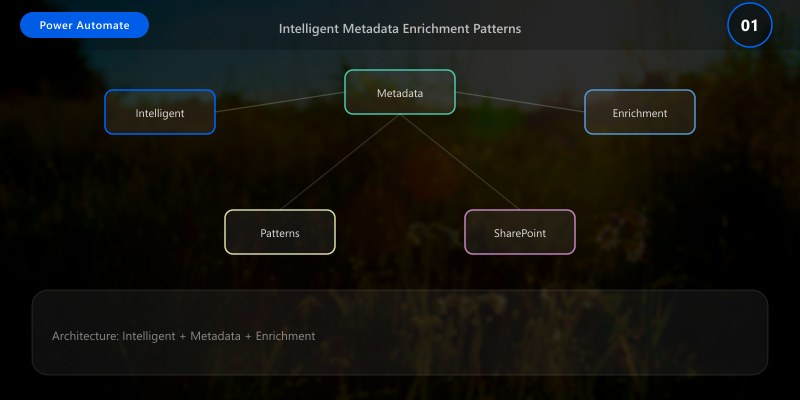
Automatically set department metadata based on upload folder path.
Scenario: Users upload to /Departments/Finance/Reports → Auto-tag Department = Finance
Implementation:
{
  "Get_file_properties": {
```text
"type": "ApiConnection",
"inputs": {
  "host": {"connectionName": "shared_sharepointonline"},
  "method": "get",
  "path": "/datasets/@{encodeURIComponent('https://contoso.sharepoint.com/sites/Docs')}/tables/@{encodeURIComponent('Documents')}/items/@{triggerBody()?['ID']}"
}```
  },
  "Compose_FilePath": {
```text
"type": "Compose",
"inputs": "@triggerBody()?['{FilenameWithExtension}']"```
  },
  "Condition_ParseDepartment": {
```text
"type": "If",
"expression": "@contains(outputs('Compose_FilePath'), 'Departments/')",
"actions": {
  "Compose_Department": {
    "type": "Compose",
    "inputs": "@split(split(outputs('Compose_FilePath'), 'Departments/')[1], '/')[0]"
  },
  "Update_file_properties": {
    "type": "ApiConnection",
    "inputs": {
      "host": {"connectionName": "shared_sharepointonline"},
      "method": "patch",
      "path": "/datasets/@{encodeURIComponent('https://contoso.sharepoint.com/sites/Docs')}/tables/@{encodeURIComponent('Documents')}/items/@{triggerBody()?['ID']}",
      "body": {
        "Department": "@outputs('Compose_Department')"
      }
    }
  }
}```
  }
}
Pattern 2: AI-Powered Metadata Extraction with AI Builder
Extract key information from documents using AI Builder models.
Scenario: Extract Invoice Number, Date, Amount from uploaded invoices
Setup:
- Create AI Builder "Form Processing" model in Power Automate
- Train model with 5+ sample invoices
- Publish model
Flow Implementation:
{
  "Get_file_content": {
```text
"type": "ApiConnection",
"inputs": {
  "host": {"connectionName": "shared_sharepointonline"},
  "method": "get",
  "path": "/datasets/@{encodeURIComponent('https://contoso.sharepoint.com/sites/Finance')}/files/@{encodeURIComponent(triggerBody()?['{Identifier}'])}/content"
}```
  },
  "Predict_AIBuilder": {
```text
"type": "ApiConnection",
"inputs": {
  "host": {"connectionName": "shared_aibuilder"},
  "method": "post",
  "path": "/formrecognizer/@{encodeURIComponent('model-id')}/predict",
  "body": {
    "file": "@body('Get_file_content')"
  }
}```
  },
  "Parse_JSON_Results": {
```text
"type": "ParseJson",
"inputs": {
  "content": "@body('Predict_AIBuilder')",
  "schema": {
    "type": "object",
    "properties": {
      "InvoiceNumber": {"type": "string"},
      "InvoiceDate": {"type": "string"},
      "TotalAmount": {"type": "number"}
    }
  }
}```
  },
  "Update_item_metadata": {
```text
"type": "ApiConnection",
"inputs": {
  "host": {"connectionName": "shared_sharepointonline"},
  "method": "patch",
  "path": "/datasets/@{encodeURIComponent('https://contoso.sharepoint.com/sites/Finance')}/tables/@{encodeURIComponent('Invoices')}/items/@{triggerBody()?['ID']}",
  "body": {
    "InvoiceNumber": "@body('Parse_JSON_Results')?['InvoiceNumber']",
    "InvoiceDate": "@body('Parse_JSON_Results')?['InvoiceDate']",
    "Amount": "@body('Parse_JSON_Results')?['TotalAmount']"
  }
}```
  }
}
Cost: AI Builder credits (~$1-2 per 1,000 documents)
Pattern 3: Content Type Assignment Based on File Extension
Automatically assign content types based on file type for proper document management.
{
  "Compose_FileExtension": {
```text
"type": "Compose",
"inputs": "@last(split(triggerBody()?['{FilenameWithExtension}'], '.'))"```
  },
  "Switch_ContentType": {
```text
"type": "Switch",
"expression": "@toLower(outputs('Compose_FileExtension'))",
"cases": {
  "pdf": {
    "case": "pdf",
    "actions": {
      "Set_PDF_ContentType": {
        "type": "ApiConnection",
        "inputs": {
          "host": {"connectionName": "shared_sharepointonline"},
          "method": "post",
          "path": "/datasets/@{encodeURIComponent('https://contoso.sharepoint.com/sites/Docs')}/tables/@{encodeURIComponent('Documents')}/items/@{triggerBody()?['ID']}/setcontenttype",
          "body": {
            "ContentType": "Report"
          }
        }
      }
    }
  },
  "docx": {
    "case": "docx",
    "actions": {
      "Set_Word_ContentType": {
        "type": "ApiConnection",
        "inputs": {
          "host": {"connectionName": "shared_sharepointonline"},
          "method": "post",
          "path": "/datasets/@{encodeURIComponent('https://contoso.sharepoint.com/sites/Docs')}/tables/@{encodeURIComponent('Documents')}/items/@{triggerBody()?['ID']}/setcontenttype",
          "body": {
            "ContentType": "Policy"
          }
        }
      }
    }
  },
  "xlsx": {
    "case": "xlsx",
    "actions": {
      "Set_Excel_ContentType": {
        "type": "ApiConnection",
        "inputs": {
          "host": {"connectionName": "shared_sharepointonline"},
          "method": "post",
          "path": "/datasets/@{encodeURIComponent('https://contoso.sharepoint.com/sites/Docs')}/tables/@{encodeURIComponent('Documents')}/items/@{triggerBody()?['ID']}/setcontenttype",
          "body": {
            "ContentType": "Spreadsheet"
          }
        }
      }
    }
  }
},
"default": {
  "actions": {}
}```
  }
}
Pattern 4: Microsoft Graph Sensitivity Label Application
Apply Microsoft Information Protection sensitivity labels using Graph API.
Prerequisites:
- Azure AD App Registration with Sites.ReadWrite.All permission
- Sensitivity labels configured in M365 Compliance Center
Flow Implementation:
{
  "HTTP_GetAccessToken": {
```text
"type": "Http",
"inputs": {
  "method": "POST",
  "uri": "https://login.microsoftonline.com/@{variables('TenantId')}/oauth2/v2.0/token",
  "headers": {
    "Content-Type": "application/x-www-form-urlencoded"
  },
  "body": "grant_type=client_credentials&client_id=@{variables('ClientId')}&client_secret=@{variables('ClientSecret')}&scope=https://graph.microsoft.com/.default"
}```
  },
  "Parse_Token": {
```text
"type": "ParseJson",
"inputs": {
  "content": "@body('HTTP_GetAccessToken')",
  "schema": {
    "type": "object",
    "properties": {
      "access_token": {"type": "string"}
    }
  }
}```
  },
  "HTTP_ApplySensitivityLabel": {
```text
"type": "Http",
"inputs": {
  "method": "PATCH",
  "uri": "https://graph.microsoft.com/v1.0/sites/@{variables('SiteId')}/drive/items/@{triggerBody()?['{ItemId}']}/assignSensitivityLabel",
  "headers": {
    "Authorization": "Bearer @{body('Parse_Token')?['access_token']}",
    "Content-Type": "application/json"
  },
  "body": {
    "sensitivityLabelId": "label-guid-here",
    "justificationText": "Auto-applied based on department"
  }
}```
  }
}
Enterprise Document Approval Workflow
Multi-Stage Approval Pattern
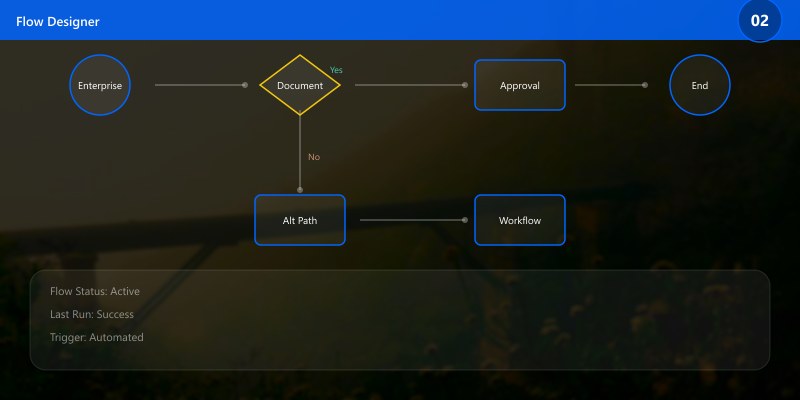
Scenario: Contract approval requiring Legal → Finance → Executive sign-off
Implementation:
- Trigger: When file uploaded to Contracts library
- Stage 1 - Legal Review:
- Start approval (Legal team group)
- Wait for response
- Update Status = "Legal Review Complete" or "Legal Rejected"
- Stage 2 - Finance Review:
- Condition: If Legal Approved
- Start approval (Finance team)
- Wait for response
- Update Status = "Finance Review Complete" or "Finance Rejected"
- Stage 3 - Executive Approval:
- Condition: If Finance Approved AND Amount > $100,000
- Start approval (Executives)
- Wait for response
- Update Status = "Approved" or "Rejected"
- Final Actions:
- If Approved: Move to Published library, send notification
- If Rejected: Move to Rejected folder, notify submitter
Flow JSON (Simplified):
{
  "Start_Legal_Approval": {
```text
"type": "ApiConnectionWebhook",
"inputs": {
  "host": {"connectionName": "shared_approvals"},
  "method": "post",
  "path": "/approvalflows/create",
  "body": {
    "title": "Legal Review: @{triggerBody()?['{FilenameWithExtension}']}",
    "assignedTo": "legal@contoso.com",
    "details": "Review contract for legal compliance",
    "itemLink": "@{triggerBody()?['{Link}']}",
    "itemLinkDescription": "View Document"
  }
}```
  },
  "Condition_LegalApproved": {
```text
"type": "If",
"expression": "@equals(body('Start_Legal_Approval')?['outcome'], 'Approve')",
"actions": {
  "Update_Status_LegalApproved": {
    "type": "ApiConnection",
    "inputs": {
      "host": {"connectionName": "shared_sharepointonline"},
      "method": "patch",
      "path": "/datasets/@{encodeURIComponent('https://contoso.sharepoint.com/sites/Contracts')}/tables/@{encodeURIComponent('Contracts')}/items/@{triggerBody()?['ID']}",
      "body": {
        "Status": "Legal Approved",
        "LegalApprover": "@{body('Start_Legal_Approval')?['responder']?['displayName']}",
        "LegalApprovalDate": "@{utcNow()}"
      }
    }
  },
  "Start_Finance_Approval": {
    "type": "ApiConnectionWebhook",
    "inputs": {
      "host": {"connectionName": "shared_approvals"},
      "method": "post",
      "path": "/approvalflows/create",
      "body": {
        "title": "Finance Review: @{triggerBody()?['{FilenameWithExtension}']}",
        "assignedTo": "finance@contoso.com",
        "details": "Review contract financials",
        "itemLink": "@{triggerBody()?['{Link}']}",
        "itemLinkDescription": "View Document"
      }
    },
    "runAfter": {"Update_Status_LegalApproved": ["Succeeded"]}
  }
},
"else": {
  "actions": {
    "Update_Status_LegalRejected": {
      "type": "ApiConnection",
      "inputs": {
        "host": {"connectionName": "shared_sharepointonline"},
        "method": "patch",
        "path": "/datasets/@{encodeURIComponent('https://contoso.sharepoint.com/sites/Contracts')}/tables/@{encodeURIComponent('Contracts')}/items/@{triggerBody()?['ID']}",
        "body": {
          "Status": "Legal Rejected",
          "RejectionComments": "@{body('Start_Legal_Approval')?['comments']}"
        }
      }
    }
  }
}```
  }
}
Parallel Approval Pattern
For approvals that can happen simultaneously (e.g., multiple department heads):
{
  "Parallel_Branch_Dept1": {
```text
"actions": {
  "Approval_Dept1": {
    "type": "ApiConnectionWebhook",
    "inputs": {
      "host": {"connectionName": "shared_approvals"},
      "method": "post",
      "path": "/approvalflows/create",
      "body": {
        "title": "Department 1 Approval",
        "assignedTo": "dept1-head@contoso.com"
      }
    }
  }
},
"runAfter": {"Trigger": ["Succeeded"]}```
  },
  "Parallel_Branch_Dept2": {
```text
"actions": {
  "Approval_Dept2": {
    "type": "ApiConnectionWebhook",
    "inputs": {
      "host": {"connectionName": "shared_approvals"},
      "method": "post",
      "path": "/approvalflows/create",
      "body": {
        "title": "Department 2 Approval",
        "assignedTo": "dept2-head@contoso.com"
      }
    }
  }
},
"runAfter": {"Trigger": ["Succeeded"]}```
  },
  "Condition_AllApproved": {
```text
"type": "If",
"expression": "@and(equals(body('Approval_Dept1')?['outcome'], 'Approve'), equals(body('Approval_Dept2')?['outcome'], 'Approve'))",
"actions": {
  "Update_Approved": {}
},
"runAfter": {"Parallel_Branch_Dept1": ["Succeeded"], "Parallel_Branch_Dept2": ["Succeeded"]}```
  }
}


> **Architecture Overview:** ## SharePoint Permissions Automation

{
  "SendHTTP_BreakInheritance": {
```text
"type": "ApiConnection",
"inputs": {
  "host": {"connectionName": "shared_sharepointonline"},
  "method": "post",
  "path": "/datasets/@{encodeURIComponent('https://contoso.sharepoint.com/sites/HR')}/httprequest",
  "body": {
    "uri": "_api/web/lists/getbytitle('Confidential')/items(@{triggerBody()?['ID']})/breakroleinheritance(copyRoleAssignments=false, clearSubscopes=true)",
    "method": "POST",
    "headers": {
      "Accept": "application/json;odata=nometadata",
      "Content-Type": "application/json;odata=nometadata"
    }
  }
}```
  },
  "SendHTTP_GetGroupId": {
```text
"type": "ApiConnection",
"inputs": {
  "host": {"connectionName": "shared_sharepointonline"},
  "method": "post",
  "path": "/datasets/@{encodeURIComponent('https://contoso.sharepoint.com/sites/HR')}/httprequest",
  "body": {
    "uri": "_api/web/sitegroups/getbyname('@{triggerBody()?['Department']} Team')",
    "method": "GET",
    "headers": {
      "Accept": "application/json;odata=nometadata"
    }


  }
},
"runAfter": {"SendHTTP_BreakInheritance": ["Succeeded"]}```
  },
  "Parse_GroupId": {
```text
"type": "ParseJson",
"inputs": {
  "content": "@body('SendHTTP_GetGroupId')",
  "schema": {
    "type": "object",
    "properties": {
      "Id": {"type": "integer"}
    }
  }
},
"runAfter": {"SendHTTP_GetGroupId": ["Succeeded"]}```
  },
  "SendHTTP_GrantPermissions": {
```text
"type": "ApiConnection",
"inputs": {
  "host": {"connectionName": "shared_sharepointonline"},
  "method": "post",
  "path": "/datasets/@{encodeURIComponent('https://contoso.sharepoint.com/sites/HR')}/httprequest",
  "body": {
    "uri": "_api/web/lists/getbytitle('Confidential')/items(@{triggerBody()?['ID']})/roleassignments/addroleassignment(principalid=@{body('Parse_GroupId')?['Id']},roleDefId=1073741827)",
    "method": "POST",
    "headers": {
      "Accept": "application/json;odata=nometadata"
    }
  }
},
"runAfter": {"Parse_GroupId": ["Succeeded"]}```
  }
}
Common Role Definitions:
- Full Control: 1073741829
- Contribute: 1073741827
- Read: 1073741826
Permission Automation Best Practices
✅ Do:
- Document all permission automation logic thoroughly
- Limit to specific libraries/lists (not entire sites)
- Test extensively in non-production environment
- Provide manual override capability
- Log all permission changes for audit
- Review automated permissions quarterly
❌ Don't:
- Automate permissions on high-traffic libraries (>100 items/day)
- Break inheritance on every item (creates management nightmare)
- Grant permissions without time-bound review process
- Ignore SharePoint threshold (5,000 uniquely permissioned items per list)
Content Governance and Lifecycle Management
Automated Retention Policy Enforcement
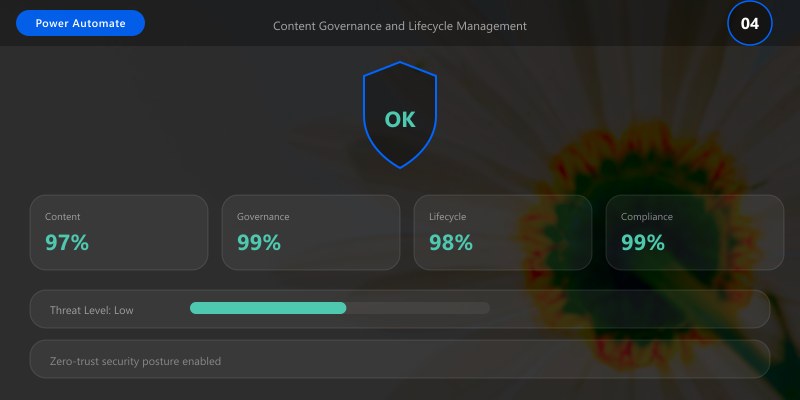
Scenario: Move documents older than 365 days to archive library, delete after 7 years
Implementation:
{
  "Recurrence": {
```text
"type": "Recurrence",
"recurrence": {
  "frequency": "Day",
  "interval": 1,
  "schedule": {
    "hours": ["2"],
    "minutes": [0]
  }
}```
  },
  "Get_items_OlderThan365Days": {
```text
"type": "ApiConnection",
"inputs": {
  "host": {"connectionName": "shared_sharepointonline"},
  "method": "get",
  "path": "/datasets/@{encodeURIComponent('https://contoso.sharepoint.com/sites/Docs')}/tables/@{encodeURIComponent('Active Documents')}/items",
  "queries": {
    "$filter": "Modified lt '@{formatDateTime(addDays(utcNow(), -365), 'yyyy-MM-ddTHH:mm:ssZ')}'",
    "$select": "ID,Title,Modified,{Identifier}",
    "$top": 5000
  }
},
"runAfter": {"Recurrence": ["Succeeded"]}```
  },
  "Apply_to_each_Document": {
```text
"type": "Foreach",
"foreach": "@body('Get_items_OlderThan365Days')?['value']",
"actions": {
  "Condition_CheckAge": {
    "type": "If",
    "expression": "@less(ticks(item()?['Modified']), ticks(addDays(utcNow(), -2555)))",
    "actions": {
      "Delete_item": {
        "type": "ApiConnection",
        "inputs": {
          "host": {"connectionName": "shared_sharepointonline"},
          "method": "delete",
          "path": "/datasets/@{encodeURIComponent('https://contoso.sharepoint.com/sites/Docs')}/tables/@{encodeURIComponent('Active Documents')}/items/@{item()?['ID']}"
        }
      },
      "Log_Deletion": {
        "type": "ApiConnection",
        "inputs": {
          "host": {"connectionName": "shared_sql"},
          "method": "post",
          "path": "/datasets/default/tables/DocumentLifecycleLog/items",
          "body": {
            "Action": "Deleted",
            "DocumentId": "@{item()?['ID']}",
            "DocumentTitle": "@{item()?['Title']}",
            "Timestamp": "@{utcNow()}",
            "Reason": "Retention policy: >7 years old"
          }
        }
      }
    },
    "else": {
      "actions": {
        "Copy_file_to_Archive": {
          "type": "ApiConnection",
          "inputs": {
            "host": {"connectionName": "shared_sharepointonline"},
            "method": "post",
            "path": "/datasets/@{encodeURIComponent('https://contoso.sharepoint.com/sites/Docs')}/copyFile",
            "queries": {
              "source": "@{item()?['{Identifier}']}",
              "destination": "https://contoso.sharepoint.com/sites/Archive/Shared Documents/@{item()?['Title']}",
              "overwrite": false
            }
          }
        },
        "Delete_from_Active": {
          "type": "ApiConnection",
          "inputs": {
            "host": {"connectionName": "shared_sharepointonline"},
            "method": "delete",
            "path": "/datasets/@{encodeURIComponent('https://contoso.sharepoint.com/sites/Docs')}/tables/@{encodeURIComponent('Active Documents')}/items/@{item()?['ID']}"
          },
          "runAfter": {"Copy_file_to_Archive": ["Succeeded"]}
        }
      }
    }
  }
},
"runAfter": {"Get_items_OlderThan365Days": ["Succeeded"]},
"runtimeConfiguration": {
  "concurrency": {
    "repetitions": 10
  }
}```
  }
}
Orphaned File Detection and Cleanup
Identify files without required metadata or owner.
PowerShell to Identify Orphaned Files:
# Connect to SharePoint
Connect-PnPOnline -Url "https://contoso.sharepoint.com/sites/Docs" -Interactive

## Get all files without Owner metadata
$orphanedFiles = Get-PnPListItem -List "Documents" -Fields "ID","Title","FileLeafRef","Owner" -PageSize 1000 |
```powershell
Where-Object { $null -eq $_.FieldValues.Owner }
Expected output:
Connected to https://contoso.sharepoint.com

Write-Host "Found $($orphanedFiles.Count) orphaned files"
Export to CSV for review
Figure: Interactive dashboard – charts, lists, and global filter controls.
$orphanedFiles | Select-Object @{Name="ID";Expression={$.Id}},
@{Name="FileName";Expression={$.FieldValues.FileLeafRef}},
@{Name="Modified";Expression={$_.FieldValues.Modified}} |
Export-Csv -Path "C:\Reports\OrphanedFiles.csv" -NoTypeInformation

## Large List Performance Optimization
SharePoint has a 5,000 item **List View Threshold**. Queries returning >5,000 items will fail unless properly designed.
### Pagination Pattern for Large Lists
**❌ Inefficient (Fails on >5,000 items):**
```json
{
"Get_items": {
```text
"type": "ApiConnection",
"inputs": {
"host": {"connectionName": "shared_sharepointonline"},
"method": "get",
"path": "/datasets/@{encodeURIComponent('https://contoso.sharepoint.com/sites/HR')}/tables/@{encodeURIComponent('Employees')}/items"
}```
}
}
✅ Efficient (Pagination with $top and skiptoken):
{
  "Initialize_SkipToken": {
```text
"type": "InitializeVariable",
"inputs": {
  "variables": [{
    "name": "SkipToken",
    "type": "string",
    "value": ""
  }]
}```
  },
  "Initialize_HasMorePages": {
```text
"type": "InitializeVariable",
"inputs": {
  "variables": [{
    "name": "HasMorePages",
    "type": "boolean",
    "value": true
  }]
}```
  },
  "Do_until_AllPagesProcessed": {
```text
"type": "Until",
"expression": "@equals(variables('HasMorePages'), false)",
"limit": {
  "count": 100,
  "timeout": "PT1H"
},
"actions": {
  "Get_items_Page": {
    "type": "ApiConnection",
    "inputs": {
      "host": {"connectionName": "shared_sharepointonline"},
      "method": "get",
      "path": "/datasets/@{encodeURIComponent('https://contoso.sharepoint.com/sites/HR')}/tables/@{encodeURIComponent('Employees')}/items",
      "queries": {
        "$top": 5000,
        "$skiptoken": "@{variables('SkipToken')}",
        "$select": "ID,Title,Email,Department"
      }
    }
  },
  "Process_Items": {
    "type": "Apply_to_each",
    "foreach": "@body('Get_items_Page')?['value']",
    "actions": {
      "Process_Item": {
        "type": "Compose",
        "inputs": "@item()"
      }
    },
    "runAfter": {"Get_items_Page": ["Succeeded"]}
  },
  "Condition_CheckNextLink": {
    "type": "If",
    "expression": "@contains(body('Get_items_Page'), '@odata.nextLink')",
    "actions": {
      "Set_SkipToken": {
        "type": "SetVariable",
        "inputs": {
          "name": "SkipToken",
          "value": "@{last(split(body('Get_items_Page')?['@odata.nextLink'], '$skiptoken='))}"
        }
      }
    },
    "else": {
      "actions": {
        "Set_HasMorePages_False": {
          "type": "SetVariable",
          "inputs": {
            "name": "HasMorePages",
            "value": false
          }
        }
      }
    },
    "runAfter": {"Process_Items": ["Succeeded"]}
  }
}```
  }
}
Indexed Columns for Large Lists
Problem: Filtering on non-indexed column triggers threshold error
Solution: Create column index in SharePoint
PowerShell to Create Index:
Connect-PnPOnline -Url "https://contoso.sharepoint.com/sites/HR" -Interactive
## Get list
$list = Get-PnPList -Identity "Employees"

## Get field to index
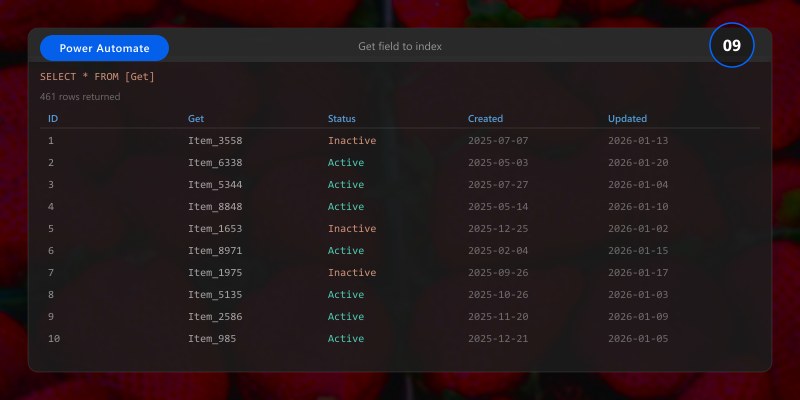
$field = Get-PnPField -List $list -Identity "Department"
## Create index
Set-PnPField -List $list -Identity $field.Id -Indexed
Write-Host "Index created on Department column"
Expected output:
Connected to https://contoso.sharepoint.com

Limitations:
- Maximum 20 indexed columns per list
- Compound indexes not supported (use views with AND filters)
- Indexes on lookup columns consume 2 index slots
OData Filter Best Practices
Use OData operators for server-side filtering:
| Operator | Example | Description |
|---|---|---|
| eq | Status eq 'Active' |
Equals |
| ne | Status ne 'Deleted' |
Not equals |
| gt | Amount gt 1000 |
Greater than |
| ge | Amount ge 1000 |
Greater than or equal |
| lt | Modified lt '2025-01-01' |
Less than |
| le | Modified le '2025-01-01' |
Less than or equal |
| and | Status eq 'Active' and Amount gt 1000 |
Logical AND |
| or | Status eq 'Pending' or Status eq 'Review' |
Logical OR |
| startswith | startswith(Title, 'INV') |
Starts with |
| substringof | substringof('keyword', Description) |
Contains |
Example:
$filter=Status eq 'Active' and Modified gt '2024-01-01T00:00:00Z' and Department eq 'Finance'
Microsoft Teams Integration
Adaptive Card Notification for Document Approval
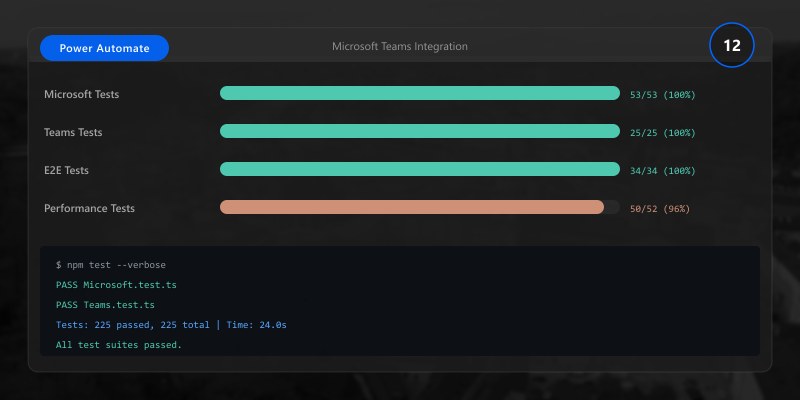
Send rich adaptive card to Teams channel when high-priority document requires approval.
Flow Implementation:
{
  "Post_adaptive_card": {
```text
"type": "ApiConnection",
"inputs": {
  "host": {"connectionName": "shared_teams"},
  "method": "post",
  "path": "/v3/beta/teams/@{encodeURIComponent('team-id')}/channels/@{encodeURIComponent('channel-id')}/messages",
  "body": {
    "rootMessage": {
      "body": {
        "contentType": "application/vnd.microsoft.card.adaptive",
        "content": {
          "$schema": "http://adaptivecards.io/schemas/adaptive-card.json",
          "type": "AdaptiveCard",
          "version": "1.4",
          "body": [
            {
              "type": "TextBlock",
              "text": "📄 New Document Awaiting Approval",
              "weight": "Bolder",
              "size": "Large",
              "color": "Accent"
            },
            {
              "type": "FactSet",
              "facts": [
                {
                  "title": "Document:",
                  "value": "@{triggerBody()?['{FilenameWithExtension}']}"
                },
                {
                  "title": "Uploaded By:",
                  "value": "@{triggerBody()?['Author']?['DisplayName']}"
                },
                {
                  "title": "Department:",
                  "value": "@{triggerBody()?['Department']}"
                },
                {
                  "title": "Priority:",
                  "value": "@{triggerBody()?['Priority']}"
                }
              ]
            }
          ],
          "actions": [
            {
              "type": "Action.OpenUrl",
              "title": "📖 View Document",
              "url": "@{triggerBody()?['{Link}']}"
            },
            {
              "type": "Action.OpenUrl",
              "title": "✅ Approve",
              "url": "https://flow.microsoft.com/manage/environments/@{workflow().tags.environmentName}/flows/@{workflow().name}/runs/@{workflow().run.name}"
            }
          ]
        }
      }
    }
  }
}```
  }
}
Term Store and Managed Metadata Integration
Programmatic Term Assignment
Use Microsoft Graph API to assign managed metadata terms.
Prerequisites:
- Managed Metadata Service configured
- Term Set created
- Graph API permission: TermStore.ReadWrite.All
Flow to Assign Term:
{
  "HTTP_GetTermByName": {
```text
"type": "Http",
"inputs": {
  "method": "GET",
  "uri": "https://graph.microsoft.com/v1.0/termStore/sets/@{variables('TermSetId')}/terms?$filter=labels/any(l: l/name eq '@{variables('TermName')}')",
  "headers": {
    "Authorization": "Bearer @{body('Get_AccessToken')?['access_token']}"
  }
}```
  },
  "Parse_TermId": {
```text
"type": "ParseJson",
"inputs": {
  "content": "@body('HTTP_GetTermByName')",
  "schema": {
    "type": "object",
    "properties": {
      "value": {
        "type": "array",
        "items": {
          "type": "object",
          "properties": {
            "id": {"type": "string"}
          }
        }
      }
    }
  }
}```
  },
  "Update_item_with_Term": {
```text
"type": "ApiConnection",
"inputs": {
  "host": {"connectionName": "shared_sharepointonline"},
  "method": "patch",
  "path": "/datasets/@{encodeURIComponent('https://contoso.sharepoint.com/sites/Docs')}/tables/@{encodeURIComponent('Documents')}/items/@{triggerBody()?['ID']}",
  "body": {
    "TaxonomyField": {
      "Label": "@{variables('TermName')}",
      "TermGuid": "@{first(body('Parse_TermId')?['value'])?['id']}",
      "WssId": -1
    }
  }
}```
  }
}
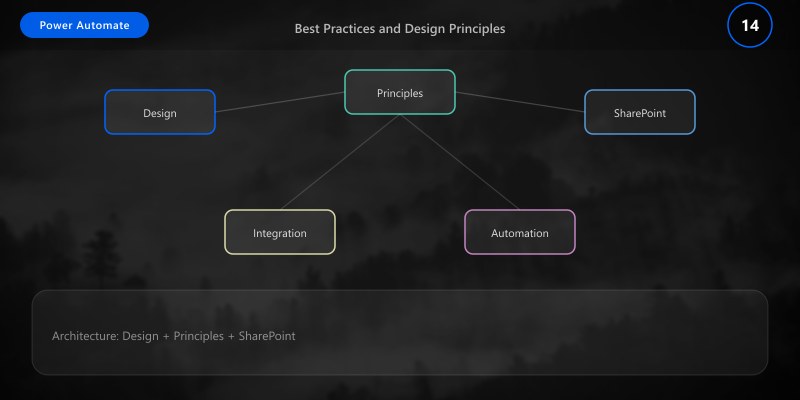
Best Practices and Design Principles
Flow Design Best Practices
✅ Do:
- Use trigger conditions to prevent infinite loops (ProcessedByFlow flag)
- Implement error handling with try-catch scopes
- Log all critical actions to SQL/Dataverse for audit trail
- Use pagination for queries that may return >1,000 items
- Cache reference data in variables (departments, product lists)
- Test flows with production-like data volumes
- Document flow logic and dependencies in flow description
- Use meaningful action names (not "Compose_1", "Compose_2")
- Implement retry policies for external API calls
- Monitor flow run history and performance metrics
❌ Don't:
- Update the same item that triggered the flow (without guard)
- Query large lists without $top and $select
- Break inheritance on every item in high-volume library
- Hardcode site URLs, column names (use variables/environment variables)
- Ignore error handling (assume happy path)
- Create deeply nested conditions (>3 levels)
- Use Apply to Each for simple array operations (use Select/Filter)
- Forget to test with >5,000 items for large list scenarios
- Ignore SharePoint throttling limits
- Skip documentation and change logs
Column Naming Conventions
Problem: Power Automate uses internal names, users see display names
Example:
- Display Name: "Employee ID"
- Internal Name: "Employee_x0020_ID" (spaces encoded)
Best Practice: Use PascalCase without spaces for column names: EmployeeID, DepartmentName, ApprovalStatus
Find Internal Name:
Connect-PnPOnline -Url "https://contoso.sharepoint.com/sites/HR" -Interactive
$fields = Get-PnPField -List "Employees"
$fields | Select-Object Title, InternalName | Sort-Object Title | Format-Table
Expected output:
Connected to https://contoso.sharepoint.com

Connection Reference Management
Problem: Flows stop working after user leaves organization (connection owner)
Solution: Use Service Principal connections (Power Platform managed identities)
Setup:
- Register Azure AD Application
- Grant SharePoint permissions
- Create Power Platform connection using service principal
- Update flows to use new connection
PowerShell to Create Service Principal Connection:
## Requires Power Platform CLI
pac auth create --tenant "contoso.onmicrosoft.com" --applicationId "app-id" --clientSecret "secret"
pac connector create --name "SharePoint_ServicePrincipal" --connector-id "shared_sharepointonline"
Troubleshooting Guide
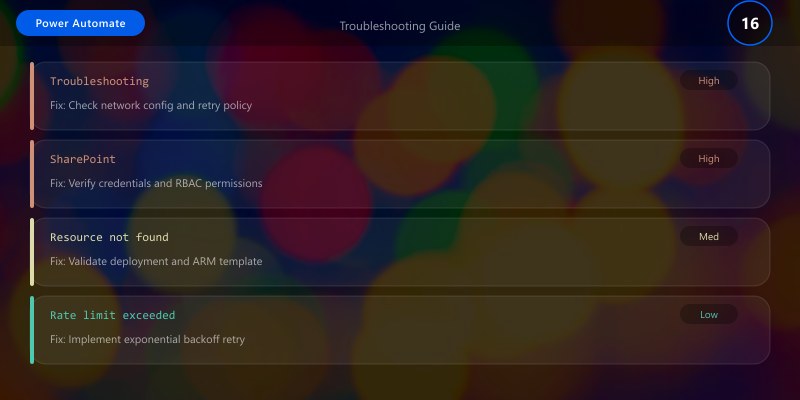
Issue 1: Flow Triggers Repeatedly (Infinite Loop)
Symptoms:
- Flow runs 10-100+ times for single document
- Rapid run history showing same item ID
- Eventual throttling errors
Diagnosis:
- Check if flow updates item that triggered it
- Review trigger conditions
- Inspect "Modified By" field (is it the flow connection?)
Resolution:
{
  "Trigger_Condition": "@and(not(equals(triggerBody()?['Editor']?['Email'], 'service-account@contoso.com')), equals(triggerBody()?['ProcessedByFlow'], false))"
}
Issue 2: Query Fails with "List View Threshold" Error
Symptoms:
- Error: "The attempted operation is prohibited because it exceeds the list view threshold"
- Flow fails when querying list with >5,000 items
Diagnosis:
- Check list item count: >5,000 items?
- Check if filter column is indexed
- Review $filter query complexity
Resolution:
- Create index on filter column (PowerShell above)
- Use $top=5000 with pagination
- Schedule flow for off-peak hours (threshold relaxed for admins)
- Consider archiving old items to keep active list <5,000
Issue 3: Permission Denied Errors
Symptoms:
- Error: "Access denied. You do not have permission to perform this action"
- HTTP 403 responses
Diagnosis:
- Check connection owner permissions (Site Member vs Site Owner)
- Review SharePoint permissions on target library
- Check if unique permissions are set on item
Resolution:
- Ensure connection owner has appropriate permissions
- For permission automation, connection owner needs Site Owner or Full Control
- Use SharePoint Admin account for governance flows
Issue 4: Column Internal Name Mismatch
Symptoms:
- Error: "Column 'Employee ID' does not exist"
- Metadata not updating despite correct flow logic
Diagnosis:
- Power Automate uses internal names (Employee_x0020_ID) not display names (Employee ID)
Resolution:
## Get internal names
Get-PnPField -List "Employees" | Select-Object Title, InternalName | Sort-Object Title

## Update flow to use internal name
"body": {
"Employee_x0020_ID": "@{variables('EmployeeID')}"
}
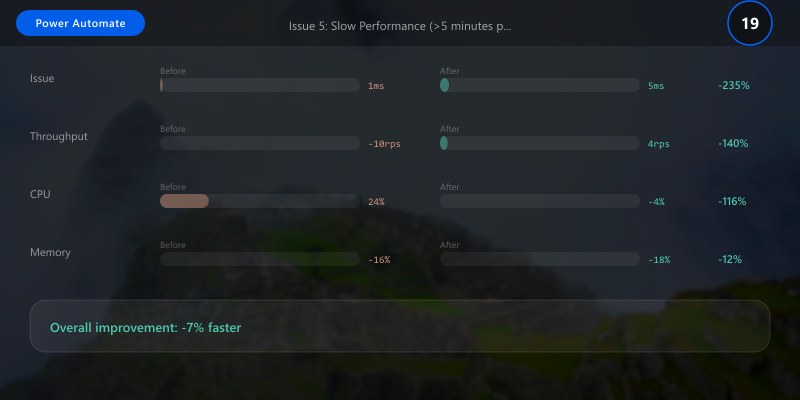
Issue 5: Slow Performance (>5 minutes per item)
Symptoms:
- Flow duration 5-30+ minutes
- Frequent timeouts
- User complaints about delays
Diagnosis:
- Check for nested loops
- Review number of HTTP/API calls per item
- Check if pagination is implemented
- Review Apply to Each concurrency settings
Resolution:
- Enable concurrency (DoP=10) for independent items
- Replace Apply to Each with Select/Filter where possible
- Cache reference data in variables
- Use batch APIs for bulk operations
- Consider child flows for large datasets
Architecture Decision and Tradeoffs
When designing process automation solutions with Power Automate, consider these key architectural trade-offs:
| Approach | Best For | Tradeoff |
|---|---|---|
| Managed / platform service | Rapid delivery, reduced ops burden | Less customisation, potential vendor lock-in |
| Custom / self-hosted | Full control, advanced tuning | Higher operational overhead and cost |
Recommendation: Start with the managed approach for most workloads and move to custom only when specific requirements demand it.
Validation and Versioning
- Last validated: April 2026
- Validate examples against your tenant, region, and SKU constraints before production rollout.
- Keep module, CLI, and SDK versions pinned in automation pipelines and review quarterly.
Security and Governance Considerations
- Apply least-privilege access using RBAC roles and just-in-time elevation for admin tasks.
- Store secrets in managed secret stores and avoid embedding credentials in scripts or source files.
- Enable audit logging, data protection policies, and periodic access reviews for regulated workloads.
Cost and Performance Notes
- Define budgets and alerts, then monitor usage and cost trends continuously after go-live.
- Baseline performance with synthetic and real-user checks before and after major changes.
- Scale resources with measured thresholds and revisit sizing after usage pattern changes.
Official Microsoft References
- https://learn.microsoft.com/power-automate/
- https://learn.microsoft.com/power-platform/admin/
- https://learn.microsoft.com/power-platform/guidance/
Public Examples from Official Sources
- These examples are sourced from official public Microsoft documentation and sample repositories.
- Documentation examples: https://learn.microsoft.com/power-automate/
- Sample repositories: https://github.com/microsoft/PowerPlatformConnectors
- Prefer adapting these examples to your tenant, subscriptions, and governance requirements before production use.
Key Takeaways
- Trigger conditions are essential to prevent infinite loops: Use ProcessedByFlow flag or Editor email checks
- Large list handling requires pagination: Use $top=5000 with skiptoken pattern for lists >5,000 items
- Column indexes are critical: Create indexes on filter columns before deploying to production
- Permission automation should be limited: Only automate permissions for specific scenarios, not all libraries
- Metadata enrichment adds value: AI Builder, path-based detection, and content type assignment improve searchability
- Document approval workflows streamline processes: Multi-stage approvals with Teams notifications enhance collaboration
- OData filtering reduces data transfer: Use $filter and $select to retrieve only needed data (30-70% faster)
- Service principal connections improve reliability: Avoid user-based connections that break when users leave
- Testing with production data is mandatory: Test with >5,000 items to validate threshold handling
- Monitoring and logging enable troubleshooting: Log critical actions to SQL/Dataverse for audit and debugging
Next Steps
- Audit current SharePoint flows: Identify flows without trigger conditions (infinite loop risk)
- Implement guard columns: Add ProcessedByFlow to high-volume libraries
- Create column indexes: Index all columns used in $filter queries
- Test large list scenarios: Validate flows with >5,000 items using pagination
- Document column mappings: Create reference document mapping display names to internal names
- Setup service principal connections: Replace user connections with service principal for production flows
- Implement monitoring: Log flow executions to SQL for performance analysis
- Create flow templates: Build reusable templates for common scenarios (approval, metadata enrichment)
- Train team on best practices: Share infinite loop prevention and large list handling techniques
- Schedule quarterly reviews: Audit permissions, performance, and governance flows quarterly