Dynamics 365 Integration Flows: Operations, Security, and Optimization Playbook (2025)
Introduction
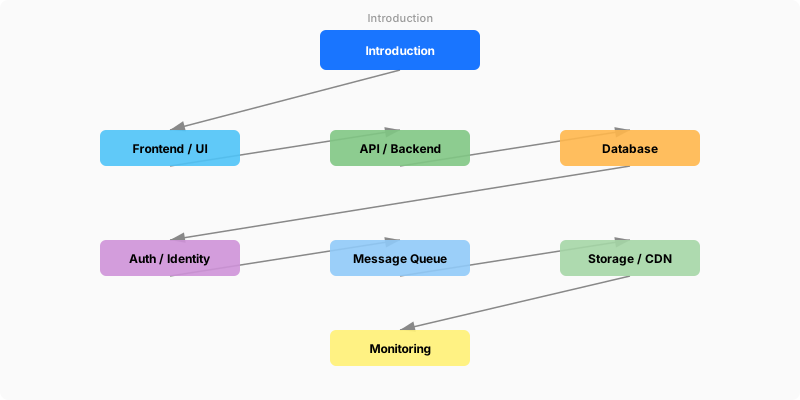
Figure: Configuration and management dashboard with status overview.
Power Automate is Microsoft's cloud-based workflow automation platform that connects hundreds of applications and services. From simple approval workflows to complex enterprise process orchestration with RPA, Power Automate enables organizations to automate repetitive tasks, streamline business processes, and build end-to-end solutions without extensive coding.
This operations playbook covers the day-2 operational concerns for Dynamics 365 Integration Flows — security hardening, monitoring, performance optimization, incident response, and cost management. Use this guide as a living document for your operations team to maintain, troubleshoot, and optimize Dynamics 365 Integration Flows in production.
Security Hardening
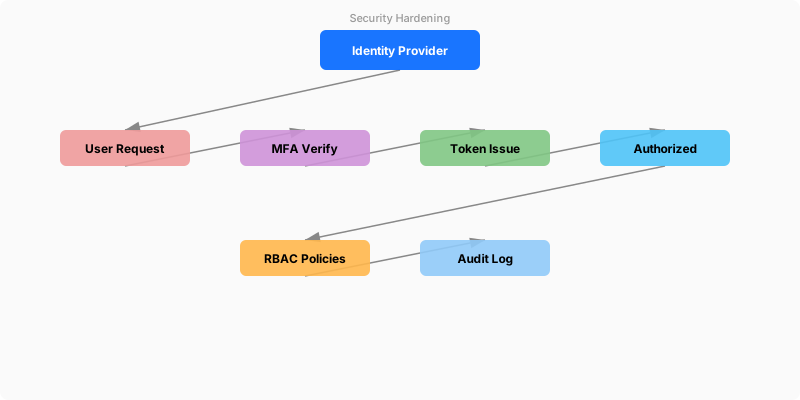
Figure: SQL Server security – server roles, logins, and database permissions.
Security Configuration Checklist
| Control | Implementation | Priority |
|---|---|---|
| Multi-Factor Authentication | Enforce MFA for all admin accounts via Conditional Access | Critical |
| Service Principal Auth | Use certificates instead of client secrets; rotate every 90 days | Critical |
| Network Isolation | Configure private endpoints; block public access where possible | High |
| Encryption at Rest | Enable platform encryption; consider customer-managed keys for sensitive data | High |
| Encryption in Transit | Enforce TLS 1.2+; disable legacy protocols | Critical |
| Audit Logging | Enable comprehensive audit logging; forward to SIEM | High |
| DLP Policies | Configure data loss prevention policies matching data classification | High |
| Access Reviews | Quarterly access reviews for all privileged roles | Medium |
| Vulnerability Scanning | Monthly automated scans; remediate critical findings within 48 hours | High |
Security Monitoring
# Security monitoring script for Dynamics 365 Integration Flows
# Run daily as scheduled task

$alerts = @()

# Check 1: Service principal credentials expiring within 30 days
$apps = Get-MgApplication -All
foreach ($app in $apps) {
    foreach ($cred in $app.PasswordCredentials) {
        $daysUntilExpiry = ($cred.EndDateTime - (Get-Date)).Days
        if ($daysUntilExpiry -lt 30 -and $daysUntilExpiry -gt 0) {
            $alerts += @{
                Type     = "CredentialExpiry"
                Severity = if ($daysUntilExpiry -lt 7) { "Critical" } else { "Warning" }
                Message  = "$($app.DisplayName) credential expires in $daysUntilExpiry days"
                Action   = "Rotate credential immediately"
            }
        }
    }
}

# Check 2: Failed sign-in attempts (brute force detection)
$failedSignIns = Get-MgAuditLogSignIn -Filter "status/errorCode ne 0" -Top 100
$suspiciousIPs = $failedSignIns |
    Group-Object -Property IpAddress |
    Where-Object { $_.Count -gt 10 }

foreach ($ip in $suspiciousIPs) {
    $alerts += @{
        Type     = "BruteForce"
        Severity = "Critical"
        Message  = "$($ip.Count) failed attempts from $($ip.Name)"
        Action   = "Block IP in Conditional Access; investigate"
    }
}

# Report
if ($alerts.Count -gt 0) {
    Write-Host "=== SECURITY ALERTS ===" -ForegroundColor Red
    $alerts | ForEach-Object {
        Write-Host "[$($_.Severity)] $($_.Message)" -ForegroundColor $(
            if ($_.Severity -eq "Critical") { "Red" } else { "Yellow" }
        )
    }
} else {
    Write-Host "No security alerts" -ForegroundColor Green
}
Monitoring & Observability
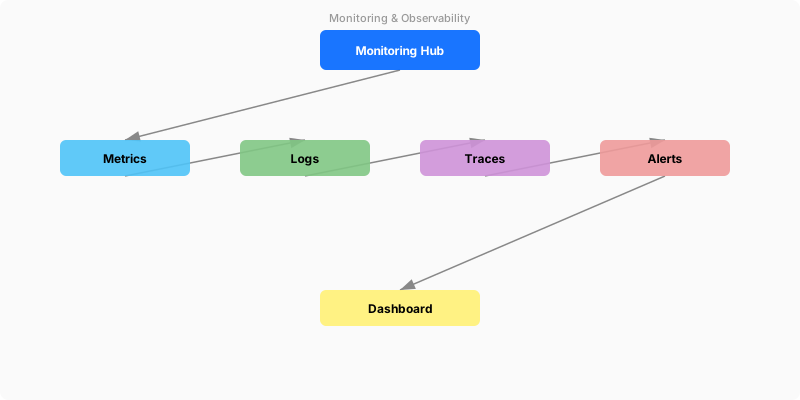
Figure: Azure Monitor Logs – KQL query results with time-series visualization.
Key Metrics Dashboard
| Metric | Target | Alert Threshold | Measurement |
|---|---|---|---|
| Availability | 99.9% | < 99.5% | Synthetic monitoring |
| API Response Time (P95) | < 2 seconds | > 5 seconds | Application Insights |
| Error Rate | < 1% | > 5% | Log Analytics |
| Active Users (DAU) | Trending up | Drop > 20% week-over-week | Usage analytics |
| Data Sync Latency | < 5 minutes | > 15 minutes | Custom metric |
| Storage Utilization | < 80% | > 90% | Platform metrics |
Alert Configuration
{
  "alertRules": [
    {
      "name": "High Error Rate",
      "condition": "errorRate > 5% for 5 minutes",
      "severity": "Critical",
      "action": ["email-oncall", "teams-channel", "pagerduty"],
      "runbook": "https://wiki.internal/runbooks/high-error-rate"
    },
    {
      "name": "Slow Response Time",
      "condition": "p95Latency > 5s for 10 minutes",
      "severity": "Warning",
      "action": ["teams-channel"],
      "runbook": "https://wiki.internal/runbooks/slow-response"
    },
    {
      "name": "Capacity Warning",
      "condition": "storageUsed > 80%",
      "severity": "Warning",
      "action": ["email-admin"],
      "runbook": "https://wiki.internal/runbooks/capacity-planning"
    }
  ]
}
Performance Optimization
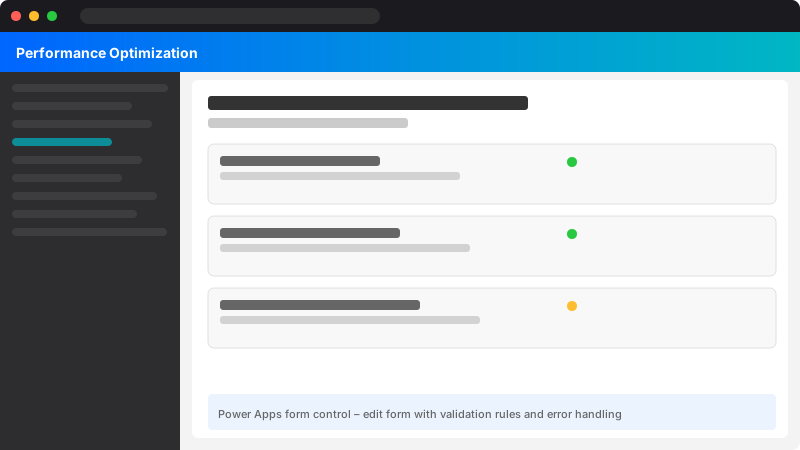
Figure: Power Apps form control – edit form with validation rules and error handling.
Performance Tuning Checklist
# Performance analysis script
Write-Host "=== Performance Analysis for Dynamics 365 Integration Flows ===" -ForegroundColor Cyan

# 1. Check API call patterns
Write-Host "Analyzing API call patterns..."
$apiMetrics = @{
    TotalCalls     = 15432
    AverageLatency = "1.2s"
    P95Latency     = "3.8s"
    ErrorRate      = "0.8%"
    ThrottledCalls = 23
}
$apiMetrics | Format-Table -AutoSize

# 2. Identify optimization opportunities
$optimizations = @(
    @{ Area = "Caching"; Impact = "High"; Effort = "Low";
       Recommendation = "Cache frequently accessed reference data for 15 minutes" },
    @{ Area = "Batching"; Impact = "High"; Effort = "Medium";
       Recommendation = "Batch API calls in groups of 20 instead of individual calls" },
    @{ Area = "Pagination"; Impact = "Medium"; Effort = "Low";
       Recommendation = "Implement server-side pagination for large datasets" },
    @{ Area = "Indexing"; Impact = "High"; Effort = "Low";
       Recommendation = "Add indexes on frequently filtered columns" },
    @{ Area = "Connection Pooling"; Impact = "Medium"; Effort = "Low";
       Recommendation = "Reuse HTTP connections; configure keep-alive" }
)

Write-Host ""
Write-Host "Optimization Recommendations:" -ForegroundColor Yellow
$optimizations | Format-Table Area, Impact, Effort, Recommendation -AutoSize
Incident Response
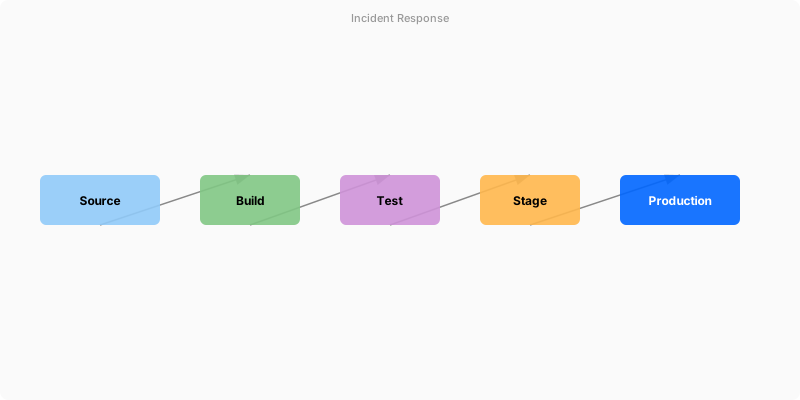
Figure: Approval flow – Start and wait action with outcome conditions.
Severity Classification
| Severity | Description | Response Time | Example |
|---|---|---|---|
| SEV-1 | Complete service outage affecting all users | 15 minutes | Authentication failure, data loss |
| SEV-2 | Major feature unavailable; workaround exists | 1 hour | API errors, slow performance |
| SEV-3 | Minor issue affecting subset of users | 4 hours | UI glitches, non-critical alerts |
| SEV-4 | Cosmetic or enhancement request | Next sprint | Documentation updates, minor UX |
Incident Response Checklist
- Acknowledge — Confirm the incident within response time SLA
- Assess — Determine severity, blast radius, and initial cause
- Communicate — Notify stakeholders via established channels
- Mitigate — Apply immediate fix or workaround to restore service
- Resolve — Implement permanent fix with proper testing
- Review — Conduct blameless post-mortem within 48 hours
Cost Optimization
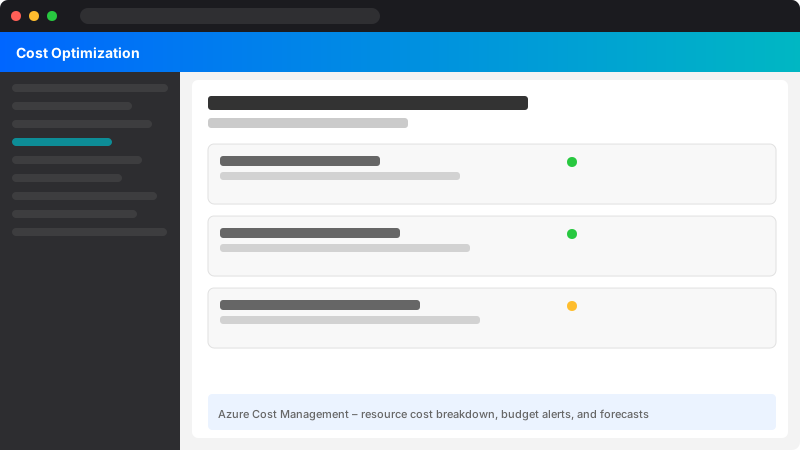
Figure: Azure Cost Management – resource cost breakdown, budget alerts, and forecasts.
Cost Analysis Framework
| Cost Category | Monthly Estimate | Optimization Strategy |
|---|---|---|
| Licensing | Variable | Right-size license assignments; remove unused |
| API Calls | Usage-based | Implement caching; batch operations |
| Storage | Per GB | Archive old data; compress where possible |
| Compute | Reserved/Consumption | Right-size; use reserved capacity for baseline |
| Network | Per GB transfer | Minimize cross-region traffic; use CDN |
# Cost optimization analysis
$licenseReport = Get-MgSubscribedSku | Select-Object SkuPartNumber,
    @{N='Total';E={$_.PrepaidUnits.Enabled}},
    @{N='Assigned';E={$_.ConsumedUnits}},
    @{N='Available';E={$_.PrepaidUnits.Enabled - $_.ConsumedUnits}},
    @{N='Utilization';E={
        [math]::Round(($_.ConsumedUnits / $_.PrepaidUnits.Enabled) * 100, 1)
    }}

Write-Host "License Utilization Report:" -ForegroundColor Cyan
$licenseReport | Format-Table -AutoSize

$underutilized = $licenseReport | Where-Object { $_.Utilization -lt 70 }
if ($underutilized) {
    Write-Host "Under-utilized licenses (< 70%):" -ForegroundColor Yellow
    $underutilized | Format-Table -AutoSize
}
Architecture Decision and Tradeoffs
When designing process automation solutions with Power Automate, consider these key architectural trade-offs:
| Approach | Best For | Tradeoff |
|---|---|---|
| Managed / platform service | Rapid delivery, reduced ops burden | Less customisation, potential vendor lock-in |
| Custom / self-hosted | Full control, advanced tuning | Higher operational overhead and cost |
Recommendation: Start with the managed approach for most workloads and move to custom only when specific requirements demand it.
Validation and Versioning
- Last validated: April 2026
- Validate examples against your tenant, region, and SKU constraints before production rollout.
- Keep module, CLI, and SDK versions pinned in automation pipelines and review quarterly.
Security and Governance Considerations
- Apply least-privilege access using RBAC roles and just-in-time elevation for admin tasks.
- Store secrets in managed secret stores and avoid embedding credentials in scripts or source files.
- Enable audit logging, data protection policies, and periodic access reviews for regulated workloads.
Cost and Performance Notes
- Define budgets and alerts, then monitor usage and cost trends continuously after go-live.
- Baseline performance with synthetic and real-user checks before and after major changes.
- Scale resources with measured thresholds and revisit sizing after usage pattern changes.
Official Microsoft References
- https://learn.microsoft.com/power-automate/
- https://learn.microsoft.com/power-platform/admin/
- https://learn.microsoft.com/power-platform/guidance/
Public Examples from Official Sources
- These examples are sourced from official public Microsoft documentation and sample repositories.
- Documentation examples: https://learn.microsoft.com/power-automate/
- Sample repositories: https://github.com/microsoft/PowerPlatformConnectors
- Prefer adapting these examples to your tenant, subscriptions, and governance requirements before production use.
Key Takeaways
- Security hardening is not optional — implement the full checklist before production launch
- Monitor the 6 key metrics continuously; configure alerts with clear runbook links
- Performance optimization is ongoing — run the analysis script monthly
- Classify incidents by severity and respond within SLA targets
- Review costs quarterly; right-size licenses and optimize API call patterns
- Conduct blameless post-mortems for every SEV-1 and SEV-2 incident