Dynamics 365 Integration Flows: Developer Implementation Guide (2025)
Introduction
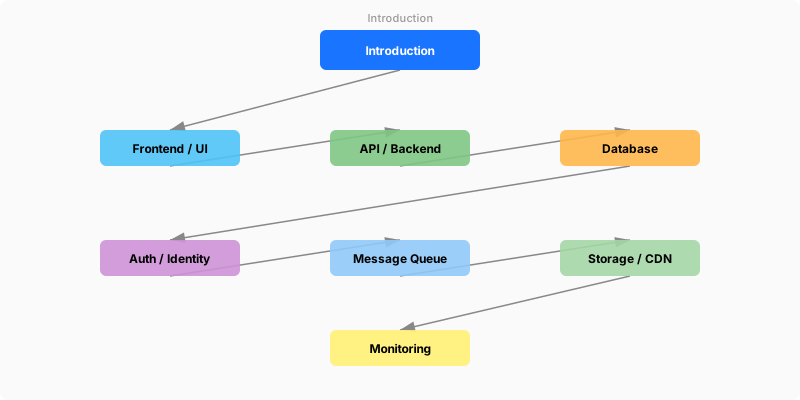
Figure: Configuration and management dashboard with status overview.
Power Automate is Microsoft's cloud-based workflow automation platform that connects hundreds of applications and services. From simple approval workflows to complex enterprise process orchestration with RPA, Power Automate enables organizations to automate repetitive tasks, streamline business processes, and build end-to-end solutions without extensive coding.
This developer-focused guide provides hands-on implementation patterns for Dynamics 365 Integration Flows, targeting professional developers who need practical code samples, API integration patterns, and development workflow optimizations. We go beyond configuration to show you how to build, test, debug, and deploy Dynamics 365 Integration Flows solutions programmatically.
What You'll Learn
- How to interact with Dynamics 365 Integration Flows APIs and SDKs programmatically
- Design patterns for robust, maintainable integrations
- Testing strategies for Dynamics 365 Integration Flows dependent code
- CI/CD pipeline integration for automated deployments
- Performance profiling and optimization techniques
Development Environment Setup
Figure: Configuration and management dashboard with status overview.
Required Tools
| Tool | Version | Purpose |
|---|---|---|
| VS Code | Latest | Primary IDE with extensions |
| Git | 2.40+ | Version control |
| Node.js | 20 LTS | Runtime and tooling |
| .NET SDK | 8.0+ | Backend development |
| PowerShell | 7.4+ | Automation scripting |
| REST Client | Any | API testing and exploration |
Environment Configuration
# Developer environment setup for Dynamics 365 Integration Flows
# Install required PowerShell modules
Install-Module -Name Microsoft.Graph -Force -AllowClobber
Install-Module -Name Az -Force -AllowClobber

# Configure development variables
$env:TENANT_ID = "your-tenant-id"
$env:CLIENT_ID = "your-app-client-id"
$env:ENVIRONMENT = "development"

# Initialize project structure
New-Item -ItemType Directory -Path @(
    "src", "tests", "config", "docs", "scripts"
) -Force

# Create development configuration
@{
    tenant      = $env:TENANT_ID
    clientId    = $env:CLIENT_ID
    environment = "development"
    logging     = @{ level = "Debug"; console = $true }
    features    = @{ mockData = $true; verboseErrors = $true }
} | ConvertTo-Json -Depth 3 | Set-Content "config/dev.json"

Write-Host "Development environment configured" -ForegroundColor Green
Expected output:
Package installed successfully.

API Integration Patterns
Figure: SharePoint in Teams – document library and page views in channel tab.
Pattern 1: Authenticated API Client
// C# - Authenticated API client for Dynamics 365 Integration Flows
using Microsoft.Graph;
using Azure.Identity;

public class ServiceClient
{
    private readonly GraphServiceClient _graph;

    public ServiceClient(string tenantId, string clientId, string clientSecret)
    {
        var credential = new ClientSecretCredential(
            tenantId, clientId, clientSecret);

        _graph = new GraphServiceClient(credential,
            new[] { "https://graph.microsoft.com/.default" });
    }

    public async Task<IEnumerable<object>> GetDataAsync(
        string filter = null, int top = 100)
    {
        var request = _graph.Users.GetAsync(config =>
        {
            config.QueryParameters.Top = top;
            config.QueryParameters.Select = new[]
            {
                "id", "displayName", "mail", "department"
            };
            if (!string.IsNullOrEmpty(filter))
                config.QueryParameters.Filter = filter;
        });

        return await request;
    }
}
Pattern 2: Batch Operations
// Batch operations for efficiency
public async Task<BatchResult> ProcessBatchAsync(
    IEnumerable<BatchItem> items)
{
    const int batchSize = 20; // Graph API limit
    var results = new List<BatchResult>();

    foreach (var batch in items.Chunk(batchSize))
    {
        var batchContent = new BatchRequestContentCollection(_graph);

        foreach (var item in batch)
        {
            var request = _graph.Users[item.Id]
                .PatchAsync(new User { Department = item.Department });
            await batchContent.AddBatchRequestStepAsync(request);
        }

        var response = await _graph.Batch.PostAsync(batchContent);
        results.Add(new BatchResult
        {
            Processed = batch.Length,
            Succeeded = response.GetResponsesStatusCodes()
                .Count(s => s.Value < 300)
        });
    }

    return BatchResult.Aggregate(results);
}
Testing Strategies
Figure: Test Studio – recorded test cases, assertions, and execution results.
Unit Testing
// xUnit test with mocked dependencies
[Fact]
public async Task GetData_ReturnsFilteredResults()
{
    // Arrange
    var mockClient = new Mock<IServiceClient>();
    mockClient
        .Setup(c => c.GetDataAsync(It.IsAny<string>(), It.IsAny<int>()))
        .ReturnsAsync(TestData.SampleItems);

    var service = new BusinessService(mockClient.Object);

    // Act
    var result = await service.ProcessAsync("active");

    // Assert
    Assert.NotEmpty(result);
    Assert.All(result, item => Assert.Equal("Active", item.Status));
}
Integration Testing
# Integration test script for Dynamics 365 Integration Flows
Describe "Dynamics 365 Integration Flows Integration Tests" {
    BeforeAll {
        Connect-MgGraph -Scopes "Directory.Read.All"
        $testContext = Initialize-TestEnvironment
    }

    It "Should authenticate successfully" {
        $context = Get-MgContext
        $context | Should -Not -BeNullOrEmpty
        $context.AuthType | Should -Be "AppOnly"
    }

    It "Should retrieve data within SLA" {
        $stopwatch = [System.Diagnostics.Stopwatch]::StartNew()
        $result = Get-MgUser -Top 10
        $stopwatch.Stop()

        $result.Count | Should -BeGreaterThan 0
        $stopwatch.ElapsedMilliseconds | Should -BeLessThan 5000
    }

    AfterAll {
        Disconnect-MgGraph
        Remove-TestEnvironment $testContext
    }
}
Expected output:
Welcome to Microsoft Graph!

CI/CD Pipeline Integration
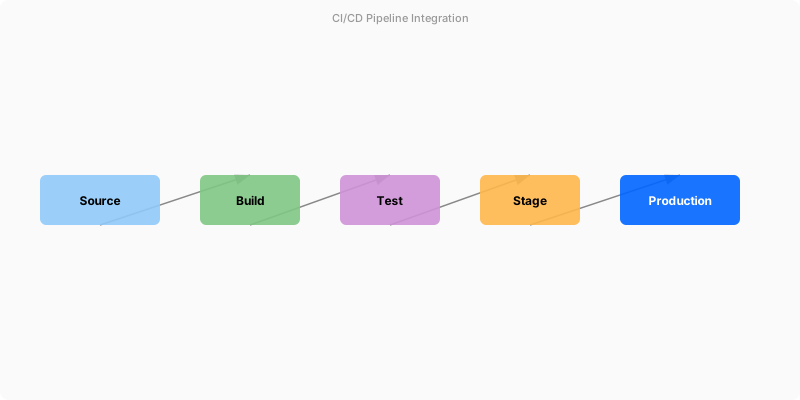
Figure: Azure DevOps pipeline – stages, deployment gates, and artifact publishing.
# Azure DevOps pipeline for Dynamics 365 Integration Flows
trigger:
  branches:
    include: [main, develop]
  paths:
    include: [src/**, tests/**]

pool:
  vmImage: 'ubuntu-latest'

stages:
  - stage: Build
    jobs:
      - job: BuildAndTest
        steps:
          - task: UseDotNet@2
            inputs:
              version: '8.0.x'

          - script: dotnet restore
            displayName: 'Restore packages'

          - script: dotnet build --configuration Release
            displayName: 'Build solution'

          - script: dotnet test --configuration Release --collect:"XPlat Code Coverage"
            displayName: 'Run tests'

  - stage: Deploy
    condition: and(succeeded(), eq(variables['Build.SourceBranch'], 'refs/heads/main'))
    jobs:
      - deployment: Production
        environment: production
        strategy:
          runOnce:
            deploy:
              steps:
                - script: dotnet publish -c Release -o publish
                  displayName: 'Publish artifacts'

                - task: AzureWebApp@1
                  inputs:
                    appType: 'webApp'
                    appName: '$(APP_NAME)'
                    package: 'publish'
Architecture Decision and Tradeoffs
When designing process automation solutions with Power Automate, consider these key architectural trade-offs:
| Approach | Best For | Tradeoff |
|---|---|---|
| Managed / platform service | Rapid delivery, reduced ops burden | Less customisation, potential vendor lock-in |
| Custom / self-hosted | Full control, advanced tuning | Higher operational overhead and cost |
Recommendation: Start with the managed approach for most workloads and move to custom only when specific requirements demand it.
Validation and Versioning
- Last validated: April 2026
- Validate examples against your tenant, region, and SKU constraints before production rollout.
- Keep module, CLI, and SDK versions pinned in automation pipelines and review quarterly.
Security and Governance Considerations
- Apply least-privilege access using RBAC roles and just-in-time elevation for admin tasks.
- Store secrets in managed secret stores and avoid embedding credentials in scripts or source files.
- Enable audit logging, data protection policies, and periodic access reviews for regulated workloads.
Cost and Performance Notes
- Define budgets and alerts, then monitor usage and cost trends continuously after go-live.
- Baseline performance with synthetic and real-user checks before and after major changes.
- Scale resources with measured thresholds and revisit sizing after usage pattern changes.
Official Microsoft References
- https://learn.microsoft.com/power-automate/
- https://learn.microsoft.com/power-platform/admin/
- https://learn.microsoft.com/power-platform/guidance/
Public Examples from Official Sources
- These examples are sourced from official public Microsoft documentation and sample repositories.
- Documentation examples: https://learn.microsoft.com/power-automate/
- Sample repositories: https://github.com/microsoft/PowerPlatformConnectors
- Prefer adapting these examples to your tenant, subscriptions, and governance requirements before production use.
Key Takeaways
- Set up a proper development environment with version-controlled configuration
- Use authenticated API clients with service principals for production workloads
- Implement batch operations to stay within API throttling limits
- Write unit tests with mocked dependencies and integration tests against test environments
- Automate deployments with CI/CD pipelines that include testing gates
- Profile performance regularly and optimize hot paths