Integrating Dynamics 365 with Power Platform: Power Apps, Power Automate, and Power BI
- Navigate to make.powerapps.com
- Select Apps → New app → Model-driven
- Add tables, forms, views, and charts
- Configure site map and app designer
- Publish and share with security roles
Canvas Apps Embedded in Dynamics 365
Opportunity canvas app component:
App Name: Opportunity Risk Assessment
Type: Canvas App
Embedded In: Opportunity form (D365 Sales)

Data Sources:
  - Dynamics 365 (Opportunities)
  - Dataverse (Risk Factors custom table)
  - SharePoint (Document library)

Controls:
  Risk Score Gauge:
```yaml
Formula: |
  Sum(
    Filter(RiskFactors, OpportunityId = OpportunityRecord.Id),
    RiskLevel * Probability
  )
Color: If(RiskScore > 70, Red, If(RiskScore > 40, Orange, Green))
Risk Factors Gallery:
Items: Filter(RiskFactors, OpportunityId = OpportunityRecord.Id)
Template:
  - Label: Factor Name
  - Dropdown: Risk Level (Low/Medium/High)
  - Slider: Probability (0-100%)
Mitigation Actions:
Items: Filter(MitigationActions, OpportunityId = OpportunityRecord.Id)
OnSelect: Navigate to action details
Add Risk Button:
OnSelect: |
  Patch(RiskFactors,
    Defaults(RiskFactors),
    {
      OpportunityId: OpportunityRecord.Id,
      Name: TextInput_RiskName.Text,
      RiskLevel: Dropdown_Level.Selected.Value,
      Probability: Slider_Probability.Value
    }
  )
**Embedding canvas app in model-driven form:**

1. Open Dynamics 365 form editor
2. Insert **Canvas App** control
3. Select existing app or create new
4. Pass context: `OpportunityRecord` → Canvas app variable
5. Set height and width
6. Publish form


### Power Apps Portals (Power Pages)

**Customer self-service portal:**

```yaml
Portal: Customer Service Portal
Purpose: Allow customers to view cases, submit requests, access knowledge base

Authentication:
  - Azure AD B2C
  - Local authentication
  - Social providers (Google, Facebook)

Web Pages:
  Home:
```text
- Welcome message
- Quick links
- Recent announcements
My Cases:
- List view filtered by contact
- Create new case
- View case details and timeline
- Add attachments
Knowledge Base:
- Search articles
- Browse by category
- Rate articles (helpful/not helpful)
Profile:
- Update contact information
- Change password
- Communication preferences
Security:
- Web Roles: Authenticated Users, Premium Customers
- Table Permissions:
- Case: Read/Write own records
- Knowledge Article: Read published articles
- Contact: Read/Write own contact
Custom Development:
- Liquid templates for page layout
- Web API for complex queries
- JavaScript for client-side logic
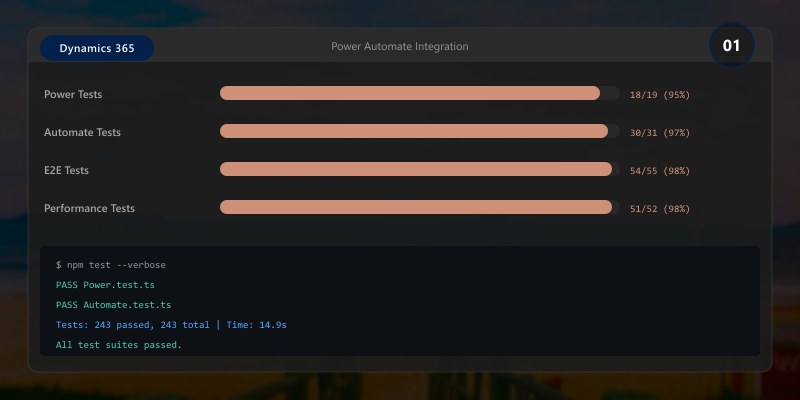
## Power Automate Integration
### Cloud Flows for Dynamics 365
**Example 1: Opportunity won automation:**
```yaml
Trigger: When a record is updated (Dataverse)
Table: Opportunity
Filter: Status = Won
Actions:
1. Get Account Details:
- Table: Account
- Row ID: Opportunity.Customer
2. Condition: Account Type = "High Value"
If Yes:
- Send email to Account Manager:
To: Account.Owner.Email
Subject: "High-value opportunity won: {Opportunity.Name}"
Body: HTML template with opportunity details
- Create task for onboarding:
Table: Task
Subject: "Onboarding - {Account.Name}"
Due Date: Add 7 days
Owner: Opportunity.Owner
Regarding: Opportunity
- Post to Teams channel:
Team: Sales Team
Channel: Wins
Message: "🎉 {User} won {Opportunity.Name} - ${Opportunity.EstimatedRevenue}"
If No:
- Send standard email notification
3. Update Account:
- Last Won Opportunity Date: UtcNow()
- Total Won Opportunities: Add 1
Example 2: Lead scoring automation:
Trigger: When a record is created or updated (Dataverse)
  Table: Lead

Actions:
  1. Initialize Score Variable: 0

  2. Add points based on criteria:
     - If Lead Source = "Website": Add 10
     - If Job Title contains "Director/VP/Manager": Add 20
     - If Company Size > 500: Add 15
     - If Industry = "Technology": Add 10
     - If Budget > $50,000: Add 25
     - If Timeline = "Immediate": Add 20

  3. Condition: Score >= 70 (Hot Lead)
     If Yes:
       - Update Lead:
         Rating: Hot
         Lead Score: {Score}
       - Assign to senior sales rep
       - Create phone call activity (due today)
       - Notify sales manager via Teams

     If 40 <= Score < 70 (Warm Lead):
       - Update Lead:
         Rating: Warm
         Lead Score: {Score}
       - Assign to sales rep (round-robin)
       - Create follow-up task (due in 2 days)

     If Score < 40 (Cold Lead):
       - Update Lead:
         Rating: Cold
         Lead Score: {Score}
       - Add to nurture campaign
Approval Workflows
Purchase order approval:
Trigger: When a record is created (Dataverse)
  Table: Purchase Order

Condition: Total Amount > $5,000

Actions:
  1. Start Approval Process:
     Approval Type: First to respond
     Approvers:


       - If Amount < $25,000: Direct Manager
       - If Amount >= $25,000: Director + Finance Manager
     Details:
       Title: "Purchase Order Approval - PO-{PONumber}"
       Description: |
         Vendor: {VendorName}
         Amount: ${TotalAmount}
         Items: {ItemList}
         Requestor: {CreatedBy.FullName}
     Timeout: 48 hours

  2. Condition: Approval Response
     If Approved:
       - Update Purchase Order:
         Status: Approved
         Approved Date: UtcNow()
         Approved By: {ApproverEmail}
       - Send notification to requestor
       - Create task for procurement: "Process PO-{PONumber}"

     If Rejected:
       - Update Purchase Order:
         Status: Rejected
         Rejection Reason: {Comments}
       - Send notification to requestor with reason
       - Update budget allocation (return funds)

  3. If Timeout:
     - Escalate to Department Head
     - Send reminder email
Desktop Flows (RPA)
Legacy system integration:
Flow Name: Import Customer Orders from Legacy ERP
Type: Desktop Flow (Attended/Unattended)

Steps:
  1. Launch legacy ERP application
  2. Navigate to Orders Export screen
  3. Select date range: Yesterday
  4. Click Export button
  5. Wait for CSV file generation
  6. Read CSV file from Downloads folder
  7. For each row in CSV:
     - Parse order data
     - Create Sales Order in Dynamics 365 (via Web API)
     - Update legacy system with D365 Order ID
  8. Move CSV to Archive folder
  9. Send completion report email

Schedule: Daily at 6:00 AM
Machine: RPA-SERVER-01
Credentials: Service Account
Error Handling: Retry 3 times, email admin on failure
Power BI Integration
Embedded Dashboards in Dynamics 365
Sales Performance Dashboard:
Dashboard Name: Sales Executive Dashboard
Embed Location: Dynamics 365 Sales Hub home page

Data Sources:
  - Dataverse (Direct Query)
```text
- Opportunity
- Account
- User (Sales Reps)```
  - Azure SQL (Import)
```text
- Sales Targets
- Historical Sales Data
Visuals:
Row 1:
- Card: Total Pipeline Value
  Measure: SUM(Opportunity[EstimatedRevenue])
  Filter: Status = Open

- Card: Won Revenue (YTD)
  Measure: SUM(Opportunity[ActualRevenue])
  Filter: Status = Won, Year = CurrentYear

- Card: Average Deal Size
  Measure: AVERAGE(Opportunity[ActualRevenue])
  Filter: Status = Won

- Gauge: Win Rate
  Value: DIVIDE(CountWon, CountTotal)
  Target: 30%
Row 2:
Architecture Overview: Column Chart: Pipeline by Stage
Row 3:
- Table: Top 10 Opportunities
  Columns:
    - Opportunity Name
    - Account
    - Owner
    - Estimated Revenue
    - Close Date
    - Stage
  Sort: Estimated Revenue (Descending)
  Conditional Formatting:
    - Close Date: Red if past due
    - Estimated Revenue: Green gradient

- Line Chart: Revenue Trend
  X-Axis: Month
  Y-Axis: Actual Revenue
  Lines: Current Year, Last Year
  Markers: Show data points
Row 4:
- Map: Opportunities by Location
  Location: Account.Address
  Size: Estimated Revenue
  Tooltip: Account Name, Opportunity Name
Filters:
- Date Range: Relative (Last 12 Months)
- Owner: Multi-select (Sales Reps)
- Industry: Multi-select
- Region: Multi-select
Refresh Schedule:
- Type: Automatic
- Frequency: Every 30 minutes (Direct Query)
- Credentials: Service Principal
Row-Level Security:
- Sales Reps: See only their opportunities
- Sales Managers: See team opportunities
- Executives: See all opportunities
### Power BI Reports for Finance & Operations

**Inventory Analysis Report:**

```yaml
Report Name: Inventory Valuation & Turnover
Data Source: Dynamics 365 F&O (via Data Export Service)

Data Model:
  Tables:
```text
- InventTable (Items)
- InventSum (Inventory on-hand)
- InventTrans (Transactions)
- InventSite (Sites)
- InventLocation (Warehouses)
Relationships:
Architecture Overview: InventTable[ItemId] → InventSum[ItemId]
Measures:
Total Inventory Value:
  = SUMX(InventSum, InventSum[PhysicalQty] * InventTable[CostPrice])

Inventory Turnover Ratio:
  = DIVIDE([COGS], [Average Inventory Value])

Days Inventory Outstanding:
  = DIVIDE(365, [Inventory Turnover Ratio])

Slow Moving Items (> 90 days):
  = CALCULATE(
      COUNTROWS(InventTable),
      InventTrans[LastMovementDate] < TODAY() - 90
    )
Pages:
Overview:
- KPI Cards: Total Value, Turnover Ratio, DIO
- Treemap: Inventory Value by Category
- Line Chart: Inventory Value Trend (12 months)
Item Analysis:
- Matrix: Item Group → Item → Quantity, Value, Turnover
- Scatter Chart: Quantity vs. Value
- Table: Slow Moving Items
Location Analysis:
- Map: Inventory by Warehouse Location
- Stacked Bar Chart: Inventory by Site and Category
- Heatmap: Stock Coverage by Location
Transactions:
- Line Chart: Issues vs. Receipts
- Waterfall Chart: Net Inventory Change
- Table: Recent Transactions
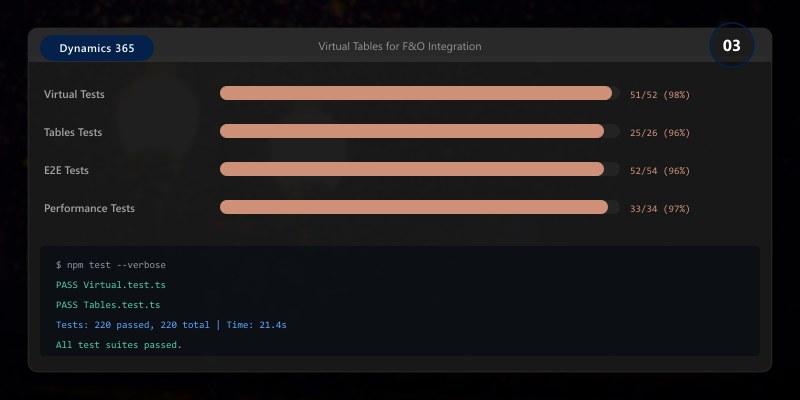
## Virtual Tables for F&O Integration
### Accessing F&O Data from Dataverse
**Virtual table setup:**
```yaml
Purpose: Access Finance & Operations data in Dataverse without data replication
Configuration Steps:
1. Install Dynamics 365 Finance & Operations virtual entity app
2. Configure Finance & Operations connection in Dataverse
3. Enable desired F&O entities as virtual tables
Example Virtual Tables:
- Customers V3
- Vendors V2
- Released Products V2
- Sales Orders V2
- Purchase Orders V2
Usage in Power Apps:
Data Source: Customers V3 (virtual table)
Filter: |
```text
Filter(
'Customers V3',
CustomerGroupId = "WHOLESALE" &&
SalesCurrencyCode = "USD"
)
Display: Gallery with customer details
OnSelect: |
Navigate(
  CustomerDetailScreen,
  ScreenTransition.Fade,
  { SelectedCustomer: ThisItem }
)
Limitations:
- No offline access (requires internet)
- Limited to OData operations (no complex joins)
- Performance depends on F&O availability
## Best Practices
1. **Security Alignment**: Ensure Power Platform security roles align with D365 permissions
2. **Error Handling**: Implement try-catch in flows and handle API errors gracefully
3. **Performance**: Use Direct Query for real-time data, Import for historical analysis
4. **Governance**: Establish Center of Excellence (CoE) for Power Platform
5. **Naming Conventions**: Use consistent prefixes for custom tables, fields, and flows
6. **Documentation**: Document flows, apps, and reports for maintainability
7. **Testing**: Test integrations in sandbox before deploying to production
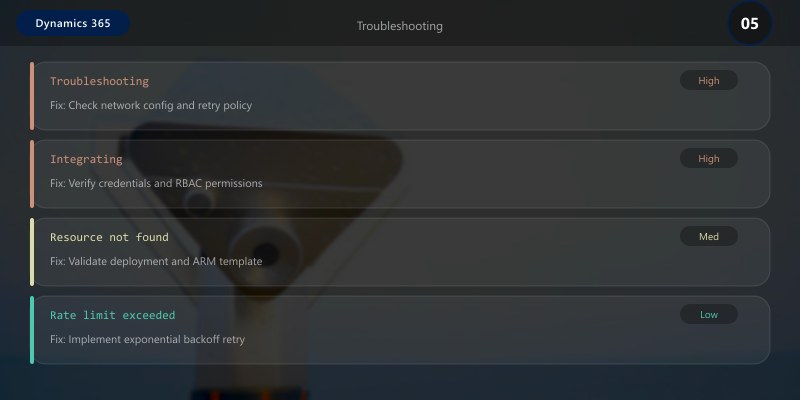
## Troubleshooting
**Power Automate flow failures:**
```sql
Error: "The user with SystemUserId cannot be found"
Cause: Flow running under unlicensed or disabled user account
Solution:
1. Open flow in edit mode
2. Check trigger and action connections
3. Update connections to use active service account
4. Ensure service account has appropriate D365 license
5. Test flow execution
Power BI refresh errors:
Error: "Unable to connect to Dataverse"
Cause: Authentication credentials expired or changed

Solution:
  1. Navigate to Power BI Service → Dataset Settings
  2. Update Data Source Credentials
  3. Use Service Principal authentication for unattended refresh
  4. Verify service principal has read permissions in Dataverse
Architecture Decision and Tradeoffs
When designing business applications solutions with Dynamics 365, consider these key architectural trade-offs:
| Approach | Best For | Tradeoff |
|---|---|---|
| Managed / platform service | Rapid delivery, reduced ops burden | Less customisation, potential vendor lock-in |
| Custom / self-hosted | Full control, advanced tuning | Higher operational overhead and cost |
Recommendation: Start with the managed approach for most workloads and move to custom only when specific requirements demand it.
Validation and Versioning
- Last validated: April 2026
- Validate examples against your tenant, region, and SKU constraints before production rollout.
- Keep module, CLI, and SDK versions pinned in automation pipelines and review quarterly.
Security and Governance Considerations
- Apply least-privilege access using RBAC roles and just-in-time elevation for admin tasks.
- Store secrets in managed secret stores and avoid embedding credentials in scripts or source files.
- Enable audit logging, data protection policies, and periodic access reviews for regulated workloads.
Cost and Performance Notes
- Define budgets and alerts, then monitor usage and cost trends continuously after go-live.
- Baseline performance with synthetic and real-user checks before and after major changes.
- Scale resources with measured thresholds and revisit sizing after usage pattern changes.
Official Microsoft References
- https://learn.microsoft.com/dynamics365/
- https://learn.microsoft.com/power-platform/admin/
- https://learn.microsoft.com/power-platform/alm/
Public Examples from Official Sources
- These examples are sourced from official public Microsoft documentation and sample repositories.
- Documentation examples: https://learn.microsoft.com/dynamics365/
- Sample repositories: https://github.com/microsoft/PowerApps-Samples
- Prefer adapting these examples to your tenant, subscriptions, and governance requirements before production use.
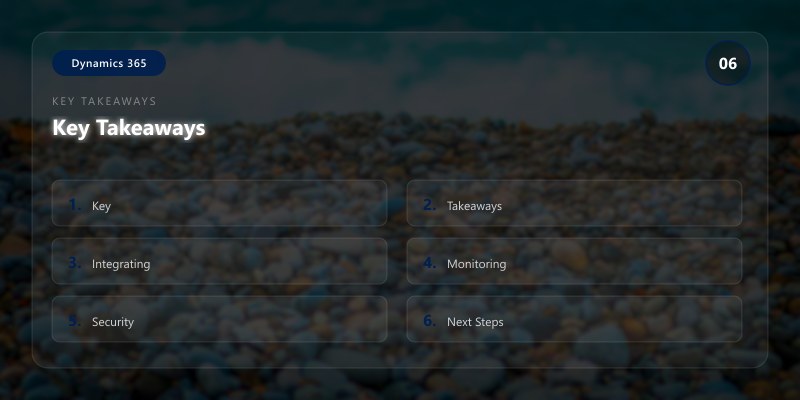
Key Takeaways
- Power Platform extends Dynamics 365 capabilities with low-code/no-code tools
- Model-driven apps share Dataverse security and data with D365
- Power Automate enables sophisticated workflow automation across systems
- Power BI provides real-time analytics embedded in D365 experiences
- Virtual tables bridge F&O data into Dataverse for unified access
Next Steps
- Implement AI Builder models for form processing and predictions
- Create Power Virtual Agents chatbots integrated with D365 data
- Build Dual-Write synchronization between F&O and Dataverse
- Establish Center of Excellence (CoE) for governance
Additional Resources
- Power Apps with Dynamics 365
- Power Automate for Dynamics 365
- Power BI Integration
- Virtual Tables for Finance & Operations
Low code, high impact.
```