VS Code Extensions for Maximum Productivity: Essential Tools for Developers
!Architecture Overview
VS Code Extensions for Maximum Productivity: Essential Tools for Developers
Introduction
Prerequisites
| Requirement | Details |
|---|---|
| Basic setup and tooling | Basic setup and tooling |
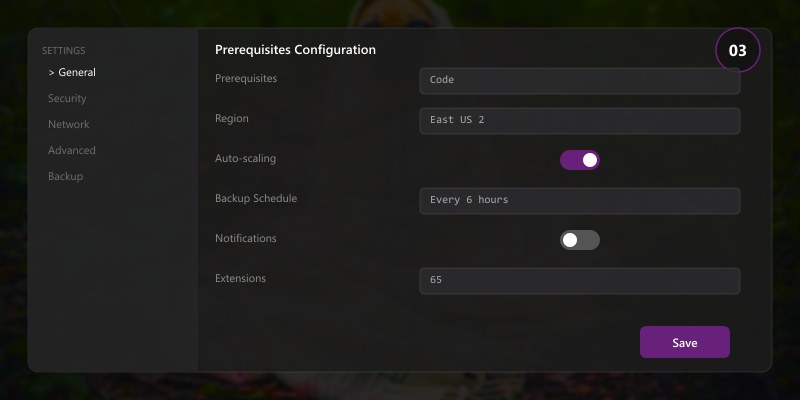
Figure: Tool configuration for vs code extensions for maximum productivity—setup workflow, recommended settings, extension integration, and team standards.
Figure: Development workflow using vs code extensions for maximum productivity—edit-debug-test cycle, collaboration patterns, and automation integration.
Figure: CI/CD pipeline integration for vs code extensions for maximum productivity—build triggers, validation gates, artifact management, and deployment automation.
Visual Studio Code has become the go-to editor for millions of developers worldwide, thanks to its extensibility and rich ecosystem. The right extensions can transform VS Code from a simple text editor into a powerful IDE tailored to your workflow. This guide covers essential extensions across multiple languages and development scenarios to maximize your productivity.
Why Extensions Matter
Extensions enhance VS Code with features like intelligent code completion, debugging, linting, formatting, version control integration, and collaboration tools. A well-curated extension set reduces context switching, automates repetitive tasks, and catches errors before they reach production.
Language-Specific Extensions
Python Development
Python Extension Pack (Microsoft)
{
  "extensionId": "ms-python.python",
  "features": [
```text
"IntelliSense (Pylance)",
"Debugging",
"Linting (Pylint, Flake8)",
"Code formatting (Black, autopep8)",
"Jupyter notebook support",
"Testing (pytest, unittest)",
"Environment management"```
  ]
}
Configuration:
{
  "python.linting.enabled": true,
  "python.linting.pylintEnabled": true,
  "python.formatting.provider": "black",
  "python.formatting.blackArgs": ["--line-length", "100"],
  "python.analysis.typeCheckingMode": "basic",
  "python.testing.pytestEnabled": true
}
Pylance for Advanced IntelliSense:
- Type checking with Pyright
- Auto-imports for missing modules
- Semantic highlighting
- Quick fixes and refactorings
C# and .NET Development
C# Extension (Microsoft)
{
  "extensionId": "ms-dotnettools.csharp",
  "features": [
```text
"OmniSharp language server",
"Debugging for .NET Core/Framework",
"Code navigation (Go to Definition, Find References)",
"Rename symbol refactoring",
"NuGet package management",
"MSBuild integration"```
  ]
}
C# Dev Kit (Microsoft) - New in 2024:
{
  "features": [
```text
"Solution Explorer",
"Test Explorer integration",
"Project templates",
"Enhanced debugging",
"AI-powered code completions"```
  ]
}
Configuration for C#:
{
  "omnisharp.enableRoslynAnalyzers": true,
  "omnisharp.enableEditorConfigSupport": true,
  "csharp.suppressBuildAssetsNotification": true,
  "dotnet.defaultSolution": "YourSolution.sln"
}
JavaScript/TypeScript
ESLint:
{
  "eslint.validate": [
```text
"javascript",
"javascriptreact",
"typescript",
"typescriptreact"```
  ],
  "eslint.format.enable": true,
  "editor.codeActionsOnSave": {
```text
"source.fixAll.eslint": true```
  }
}
Prettier - Code Formatter:
{
  "editor.defaultFormatter": "esbenp.prettier-vscode",
  "editor.formatOnSave": true,
  "prettier.singleQuote": true,
  "prettier.trailingComma": "es5"
}
TypeScript Import Organizer:
{
  "editor.codeActionsOnSave": {
```text
"source.organizeImports": true```
  }
}
Version Control Extensions
GitLens
Essential Git Features:
- Inline blame annotations showing commit authors
- Code authorship heatmaps
- File history and line history
- Compare branches, tags, commits
- Repository and file search across history
Configuration:
{
  "gitlens.currentLine.enabled": true,
  "gitlens.hovers.currentLine.over": "line",
  "gitlens.codeLens.enabled": true,
  "gitlens.codeLens.authors.enabled": true,
  "gitlens.blame.avatars": true,
  "gitlens.views.repositories.location": "scm"
}
Keyboard Shortcuts:
| Action | Shortcut |
|---|---|
| Toggle File Blame | Ctrl+Shift+B |
| Show Commit Details | Click inline blame |
| Compare with Branch | Ctrl+Shift+P → "GitLens: Compare" |
| Open File at Revision | Timeline view in Explorer |
Git Graph
Visualize repository commit history as an interactive graph:
{
  "git-graph.repository.commits.initialLoad": 300,
  "git-graph.repository.commits.maxNumber": 1000,
  "git-graph.date.format": "ISO Date & Time"
}
Container Development
Docker Extension (Microsoft)
Features:
- View and manage containers, images, networks, volumes
- Build images directly from Dockerfiles
- Run containers with custom options
- Attach VS Code to running containers
- Scaffold Docker Compose files
Common Commands via Command Palette:
Docker: Add Docker Files to WorkspaceDocker: Build ImageDocker: Run InteractiveDocker: Attach Shell
Configuration:
{
  "docker.containers.description": ["ContainerName", "Status"],
  "docker.images.description": ["Repository", "Tag", "Size"],
  "docker.showStartPage": false
}
Dev Containers (Remote - Containers)
Development Containers Configuration (.devcontainer/devcontainer.json):
{
  "name": "Python 3.11 Development",
  "image": "mcr.microsoft.com/devcontainers/python:3.11",
  "features": {
```text
"ghcr.io/devcontainers/features/docker-in-docker:2": {},
"ghcr.io/devcontainers/features/azure-cli:1": {}```
  },
  "customizations": {
```text
"vscode": {
  "extensions": [
    "ms-python.python",
    "ms-python.vscode-pylance",
    "ms-azuretools.vscode-docker"
  ],
  "settings": {
    "python.defaultInterpreterPath": "/usr/local/bin/python"
  }
}```
  },
  "postCreateCommand": "pip install -r requirements.txt",
  "remoteUser": "vscode"
}
API Development & Testing
REST Client
Send HTTP requests directly from .http or .rest files:
### Get all users
GET https://api.contoso.com/v1/users
Authorization: Bearer {{$dotenv BEARER_TOKEN}}

### Create new user
POST https://api.contoso.com/v1/users
Content-Type: application/json

{
  "name": "John Doe",
  "email": "john@contoso.com",
  "role": "developer"
}

### Environment variables
@baseUrl = https://api.contoso.com
@apiVersion = v1

GET {{baseUrl}}/{{apiVersion}}/health
Advantages over Postman:
- Version-controlled request collections
- No separate application needed
- Integrated with VS Code keybindings
- Supports environment files (
.env)
Thunder Client (Lightweight API Client)
Alternative to REST Client with a GUI:
- Collections and environments
- GraphQL support
- Code generation for requests
- Import from Postman, Insomnia, or cURL
Collaboration Extensions
Live Share (Microsoft)
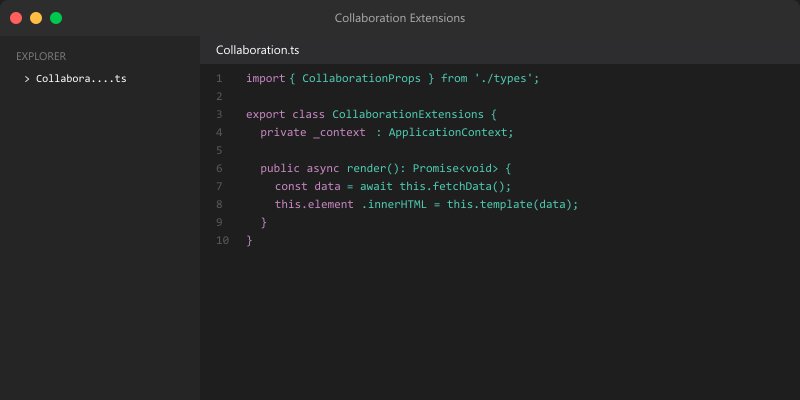
Real-Time Collaborative Editing:
Architecture Overview: # Start a Live Share session
Features:
- Shared editing with multiple cursors
- Shared debugging sessions
- Shared servers/ports (test web apps together)
- Audio calls directly in VS Code
- Read-only guest mode for code reviews
Security Settings:
{
  "liveshare.anonymousGuestApproval": "prompt",
  "liveshare.guestApprovalRequired": true,
  "liveshare.audio.joinCallBehavior": "accept"
}
GitHub Pull Requests and Issues
Review PRs Without Leaving VS Code:
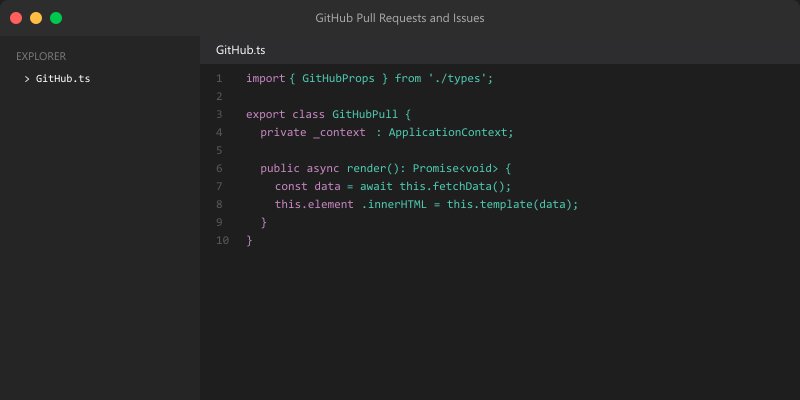
- View and create pull requests
- Comment on code inline
- Approve or request changes
- View CI/CD status checks
- Create issues from comments
Configuration:
{
  "githubPullRequests.queries": [
```json
{
  "label": "Waiting For My Review",
  "query": "is:open review-requested:${user}"
},
{
  "label": "Assigned To Me",
  "query": "is:open assignee:${user}"
}```
  ]
}
Code Quality & Formatting
SonarLint
Real-Time Code Quality Analysis:
- Detects bugs, vulnerabilities, and code smells
- Supports 25+ languages (C#, Java, JavaScript, Python, PHP, etc.)
- Quick fixes for common issues
- Integrates with SonarQube/SonarCloud
Example Issues Detected:
- SQL injection vulnerabilities
- Hardcoded credentials
- Unused variables
- Null pointer dereferences
- Complexity violations
EditorConfig
Maintain Consistent Coding Styles Across Teams:
.editorconfig Example:
root = true

[*]
charset = utf-8
end_of_line = lf
insert_final_newline = true
trim_trailing_whitespace = true

[*.{js,ts,jsx,tsx}]
indent_style = space
indent_size = 2

[*.{cs,java}]
indent_style = space
indent_size = 4

[*.py]
indent_style = space
indent_size = 4
max_line_length = 100

[*.md]
trim_trailing_whitespace = false
Productivity Boosters
Path Intellisense
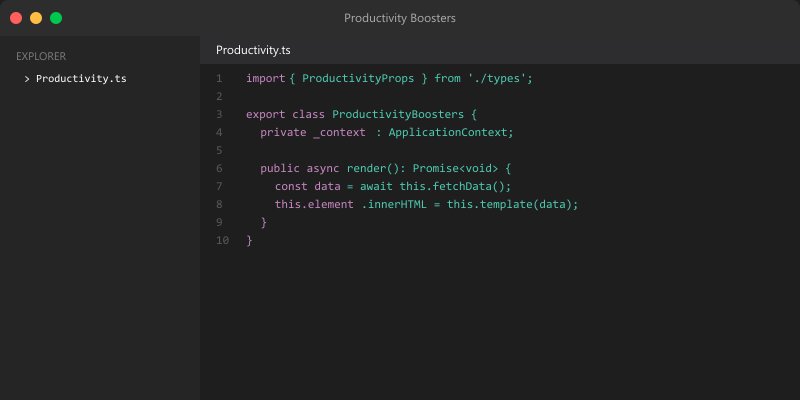
Auto-Complete File Paths:
{
  "path-intellisense.mappings": {
```text
"@": "${workspaceFolder}/src",
"@components": "${workspaceFolder}/src/components"```
  }
}
Auto Rename Tag
Automatically renames paired HTML/XML/JSX tags:
Architecture Overview: Change opening tag → closing tag updates automatically
Bracket Pair Colorizer 2
Note: Built into VS Code natively as of v1.60. Enable with:
{
  "editor.bracketPairColorization.enabled": true,
  "editor.guides.bracketPairs": "active"
}
Highlight
Highlight , FIXME, HACK comments:
{
  "todohighlight.keywords": [
```json
{
  "text": ":",
  "color": "#ff6347",
  "backgroundColor": "rgba(255, 99, 71, 0.2)"
},
{
  "text": "FIXME:",
  "color": "#ffa500",
  "backgroundColor": "rgba(255, 165, 0, 0.2)"
}```
  ]
}
Theme & Appearance
Popular Themes:
| Theme | Description | Best For |
|---|---|---|
| One Dark Pro | Atom-inspired dark theme | Long coding sessions |
| Dracula Official | High contrast with vibrant colors | Syntax highlighting clarity |
| GitHub Theme | Light/dark variants from GitHub | Consistency with GitHub UI |
| Material Theme | Google Material Design | Clean, modern aesthetic |
Icon Themes:
- Material Icon Theme: File/folder icons by extension
- vscode-icons: Extensive icon set with folder associations
Performance Optimization
Managing Extensions:
## Disable extensions for specific workspaces
Ctrl+Shift+P → "Extensions: Disable (Workspace)"
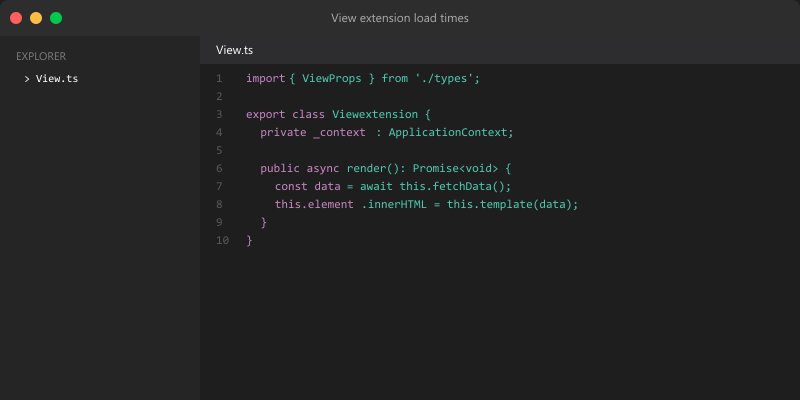
## View extension load times
Ctrl+Shift+P → "Developer: Startup Performance"
Recommended Settings:
{
  "extensions.autoUpdate": false,
  "extensions.autoCheckUpdates": false,
  "files.watcherExclude": {
```text
"**/node_modules/**": true,
"**/.git/objects/**": true,
"**/dist/**": true```
  },
  "search.exclude": {
```text
"**/node_modules": true,
"**/bower_components": true,
"**/*.code-search": true```
  }
}
Essential Extension Recommendations
Minimum Viable Setup:

- Language Support: Python, C#, or language-specific extension
- Version Control: GitLens
- Code Quality: ESLint/Pylint (language-dependent)
- Formatting: Prettier or language formatter
- Docker: Docker extension (for containerized workflows)
Power User Setup (Add to Minimum):
- REST Client or Thunder Client
- Live Share (for collaboration)
- GitHub Pull Requests and Issues
- SonarLint (code quality)
- Dev Containers (reproducible environments)
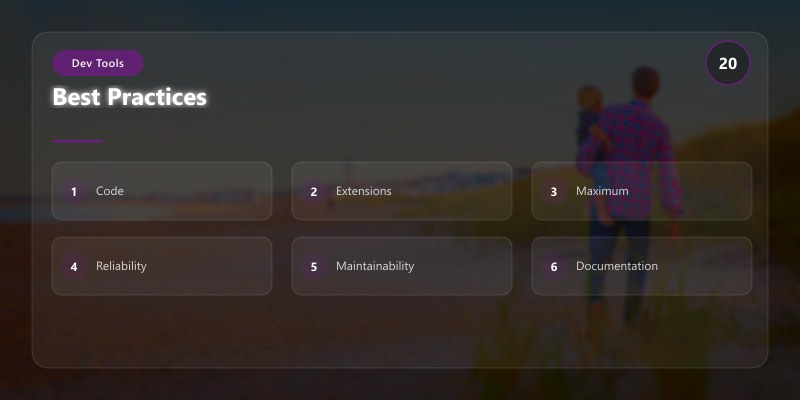
Best Practices
- Workspace-Specific Extensions: Enable only relevant extensions per project to reduce overhead
- Settings Sync: Use built-in Settings Sync to share configuration across machines
- Extension Packs: Create custom extension packs for team consistency
- Regular Audits: Review installed extensions quarterly; remove unused ones
- Security: Only install extensions from verified publishers
- Update Strategy: Test extension updates in development before production
Troubleshooting
Extension Conflicts:
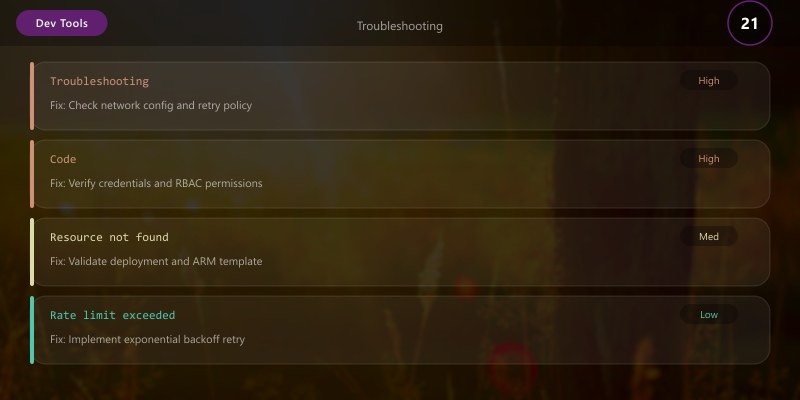
## Run VS Code in safe mode (no extensions)
code --disable-extensions
## Bisect extensions to find conflicts
## Disable half, test, repeat until conflict identified
> **Architecture Overview:** 
## Architecture Decision and Tradeoffs
When designing development workflow solutions with Developer Tools, consider these key architectural trade-offs:
| Approach | Best For | Tradeoff |
|----------|----------|----------|
| Managed / platform service | Rapid delivery, reduced ops burden | Less customisation, potential vendor lock-in |
| Custom / self-hosted | Full control, advanced tuning | Higher operational overhead and cost |
> **Recommendation:** Start with the managed approach for most workloads and move to custom only when specific requirements demand it.
## Security and Governance Considerations
- **Least Privilege:** Grant only the permissions required for each role
- **Secret Management:** Store credentials in Azure Key Vault or equivalent; never hard-code secrets
- **Audit Logging:** Enable diagnostic and activity logs for compliance and forensic analysis
- **Data Protection:** Encrypt data at rest and in transit; classify data with sensitivity labels where applicable
## Cost and Performance Notes
- **Primary Cost Drivers:** Compute tier, storage volume, and network egress
- **Optimization Levers:** Right-size resources, use reserved instances or savings plans, and review Azure Advisor recommendations regularly
- **Performance Baseline:** Define SLAs, latency targets, and throughput thresholds before going live
- **Scaling Strategy:** Use auto-scale rules and monitor utilisation to balance cost and responsiveness
## Validation and Versioning
- **Last Validated:** April 2026
- **Tested With:** Current generally-available Developer Tools APIs and SDKs
- **Known Constraints:** Check regional availability and service limits before production deployment
## Official Microsoft References
- [Microsoft Learn – Developer Tools](https://learn.microsoft.com)
- [Developer Tools Documentation](https://learn.microsoft.com)
- [Azure Architecture Center](https://learn.microsoft.com/azure/architecture/)
## Public Examples from Official Sources
- [Microsoft official samples on GitHub](https://github.com/Azure-Samples)
- [Microsoft Learn training modules](https://learn.microsoft.com/training/)