Deep Dive: Building an Employee Onboarding Portal with
$password = -join ((65..90) + (97..122) + (48..57) | Get-Random -Count 16 | ForEach-Object {[char]$_})
$passwordProfile = @{
Password = $password
ForceChangePasswordNextSignIn = $true
}
Create user parameters
$userParams = @{
AccountEnabled = $true
DisplayName = "$firstName $lastName"
GivenName = $firstName
Surname = $lastName
MailNickname = $username
UserPrincipalName = $upn
PasswordProfile = $passwordProfile
Department = $department
JobTitle = $jobTitle
UsageLocation = "US"
}
Create the user
$newUser = New-MgUser -BodyParameter $userParams
Write-Host "✓ User created successfully: $upn (Object ID: $($newUser.Id))"
Return success response
$body = @{
success = $true
message = "User created successfully"
userId = $newUser.Id
upn = $upn
temporaryPassword = $password
} | ConvertTo-Json

Push-OutputBinding -Name Response -Value ([HttpResponseContext]@{
StatusCode = [HttpStatusCode]::OK
Body = $body
Headers = @{ "Content-Type" = "application/json" }
})
} catch {
```powershell
Write-Host "✗ Error creating user: $($_.Exception.Message)"
$errorBody = @{
success = $false
message = "Failed to create user"
error = $_.Exception.Message
} | ConvertTo-Json
Push-OutputBinding -Name Response -Value ([HttpResponseContext]@{
StatusCode = [HttpStatusCode]::InternalServerError
Body = $errorBody
Headers = @{ "Content-Type" = "application/json" }
})```
}
'@
## Save function code
$createUserCode | Out-File -FilePath "$projectPath\CreateAzureADUser\run.ps1" -Encoding UTF8
Write-Host "✓ CreateAzureADUser function code saved" -ForegroundColor Green
Implement AssignLicenses Function
$assignLicensesCode = @'
using namespace System.Net
param($Request, $TriggerMetadata)
Import-Module Microsoft.Graph.Users.Actions
$requestBody = $Request.Body | ConvertFrom-Json
$userId = $requestBody.UserId
$licenses = $requestBody.Licenses # Array of SKU IDs
Write-Host "Assigning licenses to user: $userId"
try {
```powershell
Connect-MgGraph -Identity -NoWelcome
## Get available licenses
$availableSkus = Get-MgSubscribedSku | Where-Object {
$_.SkuPartNumber -in @("SPE_E5", "ENTERPRISEPREMIUM", "SPB")
}
$licensesToAssign = @()
foreach ($sku in $availableSkus) {
if ($sku.PrepaidUnits.Enabled -gt ($sku.ConsumedUnits)) {
$licensesToAssign += @{
SkuId = $sku.SkuId
DisabledPlans = @()
}
Write-Host " Adding license: $($sku.SkuPartNumber)"
}
}
if ($licensesToAssign.Count -eq 0) {
throw "No available licenses to assign"
}
## Assign licenses
Set-MgUserLicense -UserId $userId -AddLicenses $licensesToAssign -RemoveLicenses @()
Write-Host "✓ Licenses assigned successfully"
$body = @{
success = $true
message = "Licenses assigned successfully"
assignedLicenses = $licensesToAssign.Count
} | ConvertTo-Json
Push-OutputBinding -Name Response -Value ([HttpResponseContext]@{
StatusCode = [HttpStatusCode]::OK
Body = $body
Headers = @{ "Content-Type" = "application/json" }
})
Expected output:
Welcome to Microsoft Graph!

} catch {
Write-Host "✗ Error assigning licenses: $($_.Exception.Message)"

$errorBody = @{
    success = $false
    message = "Failed to assign licenses"
    error = $_.Exception.Message
} | ConvertTo-Json

Push-OutputBinding -Name Response -Value ([HttpResponseContext]@{
    StatusCode = [HttpStatusCode]::InternalServerError
    Body = $errorBody
    Headers = @{ "Content-Type" = "application/json" }
})```
}
'@

$assignLicensesCode | Out-File -FilePath "$projectPath\AssignLicenses\run.ps1" -Encoding UTF8

Write-Host "✓ AssignLicenses function code saved" -ForegroundColor Green
Deploy Functions to Azure
Write-Host "Deploying functions to Azure..." -ForegroundColor Cyan
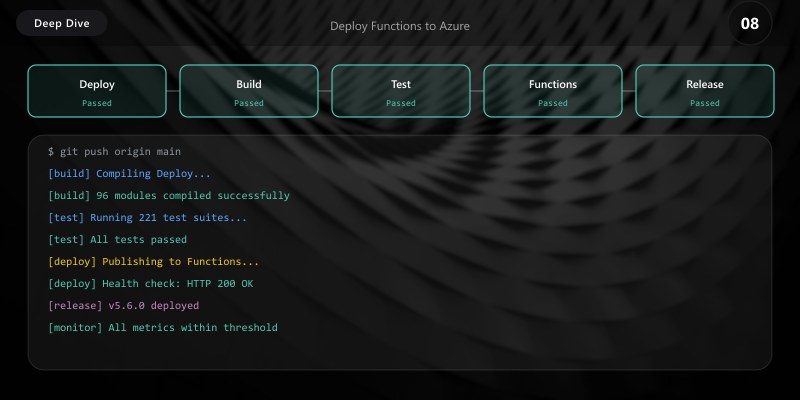
## Publish to Azure
func azure functionapp publish $functionAppName
Write-Host "✓ Functions deployed to Azure" -ForegroundColor Green
## Get function URLs
$functionApp = Get-AzFunctionApp -ResourceGroupName $resourceGroupName -Name $functionAppName
$functionsBaseUrl = "https://$($functionApp.DefaultHostName)/api"
Write-Host "`nFunction URLs:" -ForegroundColor Yellow
Write-Host " CreateAzureADUser: $functionsBaseUrl/CreateAzureADUser" -ForegroundColor White
Write-Host " AssignLicenses: $functionsBaseUrl/AssignLicenses" -ForegroundColor White
Write-Host " SendWelcomeEmail: $functionsBaseUrl/SendWelcomeEmail" -ForegroundColor White
Step 3: Configure Microsoft Graph Permissions
Grant Graph API Permissions to Managed Identity
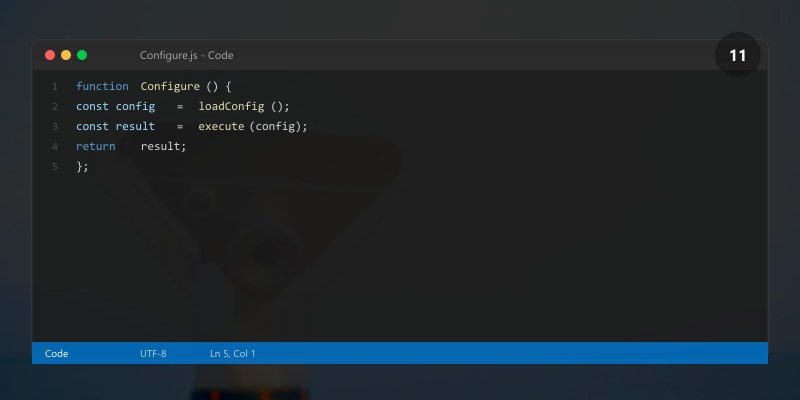
Write-Host "Configuring Microsoft Graph API permissions..." -ForegroundColor Cyan
## Connect to Microsoft Graph
Connect-MgGraph -Scopes "Application.ReadWrite.All", "AppRoleAssignment.ReadWrite.All"
## Get Function App's managed identity
$functionApp = Get-AzWebApp -ResourceGroupName $resourceGroupName -Name $functionAppName
$managedIdentityId = $functionApp.Identity.PrincipalId
Write-Host "Managed Identity Object ID: $managedIdentityId" -ForegroundColor Yellow
## Get Microsoft Graph service principal
$graphSP = Get-MgServicePrincipal -Filter "displayName eq 'Microsoft Graph'"
## Define required permissions
$permissions = @(
```text
"User.ReadWrite.All", # Create and modify users
"Directory.ReadWrite.All", # Read/write directory data
"Group.ReadWrite.All", # Manage groups
"Mail.Send", # Send emails
"Calendars.ReadWrite" # Create calendar events```
)
## Get the managed identity service principal
$msiSP = Get-MgServicePrincipal -Filter "objectId eq '$managedIdentityId'"
foreach ($permission in $permissions) {
> **Architecture Overview:** ## Get the app role for the permission
**Expected output:**
```text
Welcome to Microsoft Graph!

Step 4: Create PowerApps Canvas App
Design App Screens
Architecture Overview: PowerApps Screen Structure:
- Employee First Name (Text input)
- Employee Last Name (Text input)
- Employee Email (Text input)
- Start Date (Date picker)
- Department (Dropdown)
- Job Title (Text input)
- Manager Email (Text input with people picker)
- Equipment (Text area)
- Special Requirements (Text area)```
- Submit button (saves to SharePoint list)
Screen 3: RequestListScreen
- Gallery showing all onboarding requests
- Filter by status (dropdown)
- Search by employee name
- Click request to view details
Screen 4: RequestDetailScreen
- Request information display
- Status progress indicator
- Tasks checklist
- Documents section
- Approve/Reject buttons (for managers)
- Provision Account button (for IT - triggers Azure Function)
Screen 5: DashboardScreen
- Charts and metrics:
* Requests by status (pie chart)
* Requests by department (bar chart)
* Average time to onboard
* Upcoming start dates (calendar)
### PowerApps Formula - OnStart (App Initialization)

```python
// App OnStart property
ClearCollect(
```text
colDepartments,
["IT", "HR", "Finance", "Sales", "Marketing", "Operations"]```
);

ClearCollect(
```text
colStatuses,
["Submitted", "Manager Approved", "IT Provisioned", "HR Approved", "Completed", "Cancelled"]```
);

// Load theme colors
Set(gblThemePrimary, ColorValue("#0078D4"));      // Azure Blue
Set(gblThemeSecondary, ColorValue("#742774"));    // PowerApps Purple
Set(gblThemeSuccess, ColorValue("#107C10"));      // Green
Set(gblThemeDanger, ColorValue("#D13438"));       // Red
Set(gblThemeWarning, ColorValue("#FFB900"));      // Yellow
Set(gblBackground, ColorValue("#F3F2F1"));        // Light gray
Set(gblTextPrimary, ColorValue("#201F1E"));       // Dark gray

// Get current user
Set(gblCurrentUser, User());

// Load data from SharePoint
ClearCollect(
```text
colRequests,
'OnboardingRequests'```
);

ClearCollect(
```text
colTasks,
'OnboardingTasks'```
);

// Calculate stats
Set(
```text
gblPendingCount,
CountRows(Filter(colRequests, OnboardingStatus <> "Completed" && OnboardingStatus <> "Cancelled"))```
);

Set(
```text
gblTasksDueToday,
CountRows(Filter(colTasks, DateDiff(Today(), DueDate) = 0 && Status <> "Completed"))```
);
CreateRequestScreen - Submit Button Formula
// btnSubmit OnSelect property
If(
```text
// Validation
IsBlank(txtFirstName.Text) || IsBlank(txtLastName.Text) || IsBlank(txtEmail.Text),
Notify("Please fill in all required fields", NotificationType.Error),

// Submit to SharePoint
Patch(
    'OnboardingRequests',
    Defaults('OnboardingRequests'),
    {
        Title: Concatenate(txtFirstName.Text, " ", txtLastName.Text, " - Onboarding"),
        EmployeeFirstName: txtFirstName.Text,
        EmployeeLastName: txtLastName.Text,
        EmployeeEmail: txtEmail.Text,
        StartDate: datStartDate.SelectedDate,
        Department: ddDepartment.Selected.Value,
        JobTitle: txtJobTitle.Text,
        ManagerEmail: txtManagerEmail.Text,
        OnboardingStatus: "Submitted",
        AzureADCreated: false,
        EquipmentRequested: txtEquipment.Text,
        SpecialRequirements: txtSpecialReqs.Text
    }
);

// Show success message
Notify("Onboarding request submitted successfully!", NotificationType.Success);

// Refresh data
Refresh('OnboardingRequests');
ClearCollect(colRequests, 'OnboardingRequests');

// Navigate back
Navigate(RequestListScreen, ScreenTransition.Fade);

// Clear form
Reset(txtFirstName);
Reset(txtLastName);
Reset(txtEmail);
Reset(datStartDate);
Reset(ddDepartment);
Reset(txtJobTitle);
Reset(txtManagerEmail);
Reset(txtEquipment);
Reset(txtSpecialReqs);```
)
RequestDetailScreen - Provision Account Button
// btnProvisionAccount OnSelect property
Set(varIsProvisioning, true);

// Call Azure Function to create Azure AD user
Set(
```text
varCreateUserResponse,
ParseJSON(
    CreateAzureADUser.Run(
        JSON(
            {
                FirstName: galRequests.Selected.EmployeeFirstName,
                LastName: galRequests.Selected.EmployeeLastName,
                Email: galRequests.Selected.EmployeeEmail,
                Department: galRequests.Selected.Department,
                JobTitle: galRequests.Selected.JobTitle
            }
        )
    ).Body
)```
);

If(
```sql
varCreateUserResponse.success,

// User created successfully
Concurrent(
    // Update SharePoint list
    Patch(
        'OnboardingRequests',
        galRequests.Selected,
        {
            AzureADCreated: true,
            AzureADObjectID: varCreateUserResponse.userId,
            OnboardingStatus: "IT Provisioned"
        }
    ),

    // Call Azure Function to assign licenses
    Set(
        varLicenseResponse,
        AssignLicenses.Run(
            JSON(
                {
                    UserId: varCreateUserResponse.userId,
                    Licenses: ["SPE_E5"]
                }
            )
        )
    ),

    // Send welcome email
    Set(
        varEmailResponse,
        SendWelcomeEmail.Run(
            JSON(
                {
                    ToEmail: galRequests.Selected.EmployeeEmail,
                    EmployeeName: Concatenate(galRequests.Selected.EmployeeFirstName, " ", galRequests.Selected.EmployeeLastName),
                    StartDate: Text(galRequests.Selected.StartDate, "mm/dd/yyyy"),
                    TemporaryPassword: varCreateUserResponse.temporaryPassword
                }
            )
        )
    )
);

// Show success
Notify("Account provisioned successfully! Welcome email sent.", NotificationType.Success);

// Refresh data
Refresh('OnboardingRequests'),

// Show error
Notify(Concatenate("Failed to create account: ", varCreateUserResponse.message), NotificationType.Error)```
);

Set(varIsProvisioning, false);
DashboardScreen - Status Chart
// chartRequestsByStatus Items property
AddColumns(
```text
GroupBy(
    Filter(colRequests, OnboardingStatus <> "Cancelled"),
    "OnboardingStatus",
    "Count"
),
"Total",
CountRows(Count)```
)

// chartRequestsByStatus Legend
OnboardingStatus

// chartRequestsByStatus Value
Total

// Gallery showing upcoming start dates
SortByColumns(
```text
Filter(
    colRequests,
    StartDate >= Today() && StartDate <= DateAdd(Today(), 14) && OnboardingStatus <> "Completed"
),
"StartDate",
Ascending```
)
Step 5: Create Power Automate Approval Workflow
Create Approval Flow
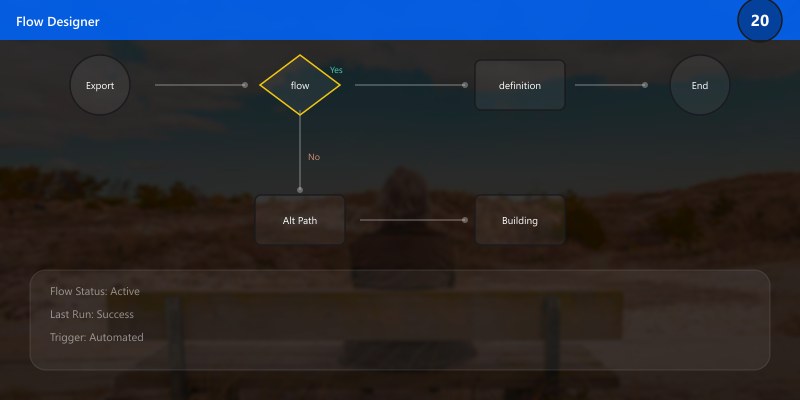
Flow Name: Onboarding Request Approval
Trigger: When an item is created (SharePoint - OnboardingRequests)

Actions:

1. Get Manager Details
   - Input: Manager Email from request
   - Output: Manager display name, email

2. Start and wait for an approval
   - Approval type: Approve/Reject - First to respond
   - Title: "New Employee Onboarding Request"
   - Assigned to: Manager Email
   - Details:
     Employee: {EmployeeFirstName} {EmployeeLastName}
     Start Date: {StartDate}
     Department: {Department}
     Job Title: {JobTitle}
     Equipment: {EquipmentRequested}

3. Condition: If approval outcome = Approved

   YES Branch:

   4a. Update item (SharePoint)
      - Status = "Manager Approved"

   4b. Send email notification to HR
      - To: hr@contoso.com
      - Subject: "Onboarding Approved - {EmployeeFirstName} {EmployeeLastName}"
      - Body: Manager has approved the onboarding request. Please proceed with next steps.

   4c. Send email to IT
      - To: it@contoso.com
      - Subject: "New Employee Equipment Request"
      - Body: Equipment needed for {EmployeeFirstName} {EmployeeLastName} starting {StartDate}
            {EquipmentRequested}

   4d. Create planner task
      - Plan: "HR Operations"
      - Bucket: "Onboarding"
      - Title: "Complete onboarding for {EmployeeFirstName} {EmployeeLastName}"
      - Due date: {StartDate}
      - Assigned to: HR team

   NO Branch:

   5a. Update item (SharePoint)
      - Status = "Cancelled"

   5b. Send email notification to HR
      - To: hr@contoso.com
      - Subject: "Onboarding Rejected - {EmployeeFirstName} {EmployeeLastName}"
      - Body: Manager has rejected the onboarding request. Reason: {Approval comments}
PowerShell Script to Export/Import Flow
## Export flow definition
Install-Module -Name Microsoft.PowerApps.Administration.PowerShell
## Connect to Power Platform
Add-PowerAppsAccount
## List environments
Get-AdminPowerAppEnvironment
## Set environment
$environmentName = "Default-12345678-1234-1234-1234-123456789012"
## List flows in environment
Get-AdminFlow -EnvironmentName $environmentName |
```text
Select-Object FlowName, DisplayName, CreatedTime |
Format-Table
Expected output:
Package installed successfully.

Export specific flow
$flowName = "12345678-1234-1234-1234-123456789012"
$flow = Get-AdminFlow -EnvironmentName $environmentName -FlowName $flowName
$flow | ConvertTo-Json -Depth 10 | Out-File "C:\Temp\OnboardingApprovalFlow.json"
Write-Host "✓ Flow exported to C:\Temp\OnboardingApprovalFlow.json" -ForegroundColor Green
Diagram: See the official Microsoft documentation for architecture details.
Expected output:
Connected to https://contoso.sharepoint.com

} catch {
Architecture Overview: Write Host " ✗ Function call failed: $($_.Exception.Message)" ForegroundColor Red```
Remove-PnPListItem -List "OnboardingRequests" -Identity $testRequest.Id -Force
Write-Host "✓ Test request deleted" -ForegroundColor Green```
}
**Expected output:**

```text
Title           ItemCount  Url
-----           ---------  ---
Documents       156        /Shared Documents

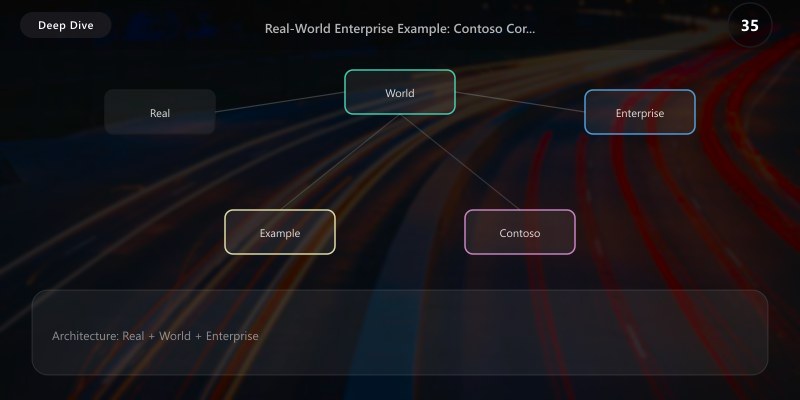
Real-World Enterprise Example: Contoso Corporation
Scenario: Contoso Corporation (5,000 employees) onboards 50-100 new employees per month across multiple departments and locations.
Before Implementation
- Manual process: 2 weeks average onboarding time
- Email-based: 200+ emails per onboarding
- Error rate: 15% of accounts had provisioning errors
- Document chaos: Lost forms, missing signatures
- No visibility: Managers had no visibility into onboarding status
After Implementation
- Automated workflow: 3 days average onboarding time
- Centralized portal: Single source of truth
- Error reduction: 2% error rate (90% improvement)
- Digital documents: 100% paperless with retention policies
- Real-time dashboard: Managers see progress instantly
Metrics After 6 Months
| Metric | Before | After | Improvement |
|---|---|---|---|
| Average Onboarding Time | 14 days | 3 days | 79% faster |
| HR Time per Onboarding | 8 hours | 2 hours | 75% reduction |
| IT Time per Onboarding | 4 hours | 30 min | 87% reduction |
| Provisioning Errors | 15% | 2% | 87% reduction |
| New Hire Satisfaction | 3.2/5 | 4.7/5 | 47% increase |
| Cost per Onboarding | $450 | $120 | 73% reduction |
Success Stories
IT Department: "We reduced new hire provisioning from 4 hours to 30 minutes. Azure Functions handle everything automatically—user creation, license assignment, group membership. No more manual work."
HR Team: "The dashboard gives us complete visibility. We can see exactly where each onboarding is in the process. Managers love the approval workflow—it takes them 2 minutes instead of scheduling meetings."
New Employees: "I received everything I needed before my first day. My laptop was ready, accounts were set up, and I had a personalized welcome email with all the information. It felt professional and organized."
Best Practices Summary
DO:
- ✅ Use managed identities for Azure Functions (never hard-code credentials)
- ✅ Implement approval workflows for compliance
- ✅ Enable versioning on document libraries
- ✅ Use metadata for document organization
- ✅ Create mobile-responsive PowerApps interfaces
- ✅ Implement error handling in all Azure Functions
- ✅ Use concurrent loading in PowerApps for performance
- ✅ Set up monitoring and alerts for Azure Functions
- ✅ Document the solution architecture
- ✅ Test end-to-end before production deployment
DON'T:
- ❌ Store sensitive data in PowerApps collections
- ❌ Skip input validation in forms
- ❌ Hard-code tenant-specific values
- ❌ Forget to handle Power Automate flow failures
- ❌ Skip permission testing for different user roles
- ❌ Deploy without backup/rollback plan
- ❌ Ignore Azure Function timeout limits (5 min default)
- ❌ Use admin accounts for service connections
- ❌ Skip load testing for high-volume scenarios
- ❌ Forget to train end users
Architecture Decision and Tradeoffs
When designing integrated solutions solutions with Azure + Power Platform, consider these key architectural trade-offs:
| Approach | Best For | Tradeoff |
|---|---|---|
| Managed / platform service | Rapid delivery, reduced ops burden | Less customisation, potential vendor lock-in |
| Custom / self-hosted | Full control, advanced tuning | Higher operational overhead and cost |
Recommendation: Start with the managed approach for most workloads and move to custom only when specific requirements demand it.
Validation and Versioning
- Last validated: April 2026
- Validate examples against your tenant, region, and SKU constraints before production rollout.
- Keep module, CLI, and SDK versions pinned in automation pipelines and review quarterly.
Security and Governance Considerations
- Apply least-privilege access using RBAC roles and just-in-time elevation for admin tasks.
- Store secrets in managed secret stores and avoid embedding credentials in scripts or source files.
- Enable audit logging, data protection policies, and periodic access reviews for regulated workloads.
Cost and Performance Notes
- Define budgets and alerts, then monitor usage and cost trends continuously after go-live.
- Baseline performance with synthetic and real-user checks before and after major changes.
- Scale resources with measured thresholds and revisit sizing after usage pattern changes.
Official Microsoft References
- https://learn.microsoft.com/azure/architecture/
- https://learn.microsoft.com/azure/well-architected/
- https://learn.microsoft.com/power-platform/guidance/
Public Examples from Official Sources
- These examples are sourced from official public Microsoft documentation and sample repositories.
- Documentation examples: https://learn.microsoft.com/azure/well-architected/
- Sample repositories: https://github.com/Azure/ArchitectureCenter
- Prefer adapting these examples to your tenant, subscriptions, and governance requirements before production use.
Key Takeaways
- Integration is powerful - Azure + PowerApps + SharePoint creates enterprise solutions
- Serverless scales - Azure Functions handle automation without infrastructure management
- Low-code accelerates - PowerApps delivers professional UIs in hours, not weeks
- Workflows eliminate email - Power Automate replaces email chains with structured approvals
- Managed Identity = Security - No credentials in code, Azure handles authentication
- Metadata enables search - SharePoint metadata makes documents discoverable
- Mobile-first matters - 40% of onboarding accessed from mobile devices
- Dashboards drive decisions - Real-time visibility improves process efficiency
- Testing prevents issues - End-to-end testing catches integration problems
- Documentation ensures success - Architecture docs help future maintenance
Additional Resources
- Azure Functions PowerShell Guide
- PowerApps Canvas App Documentation
- Power Automate Approvals
- Microsoft Graph API Reference
- SharePoint Online Lists and Libraries
- Managed Identities for Azure Resources
Next Steps
- Add Microsoft Teams integration: Post onboarding updates to Teams channels
- Implement analytics: Track onboarding metrics with Power BI
- Create offboarding workflow: Reverse process for departing employees
- Add equipment tracking: Integrate with asset management system
- Implement self-service: Allow employees to update their own information
- Add compliance reporting: Generate audit reports for HR compliance
- Create mobile app: Publish PowerApps as mobile app for app stores
- Integrate with HRIS: Sync with existing HR systems (Workday, SAP SuccessFactors)
Ready to transform your onboarding process? Start with SharePoint lists and Azure Functions, then layer on PowerApps for the UI—this architecture scales from 10 employees to 10,000!